
All users are directed to the Landing Page (Home Page) immediately after logging in.
This page provides an overview of the performance appraisal process and serves as the starting point for user activities within the system.
The landing page typically includes:
An image representing the steps in the performance appraisal process (displayed in the left pane).
A textual write-up explaining the process or sharing organization policies (displayed in the right pane).
An optional Action Items link that directs users to their performance-related tasks.
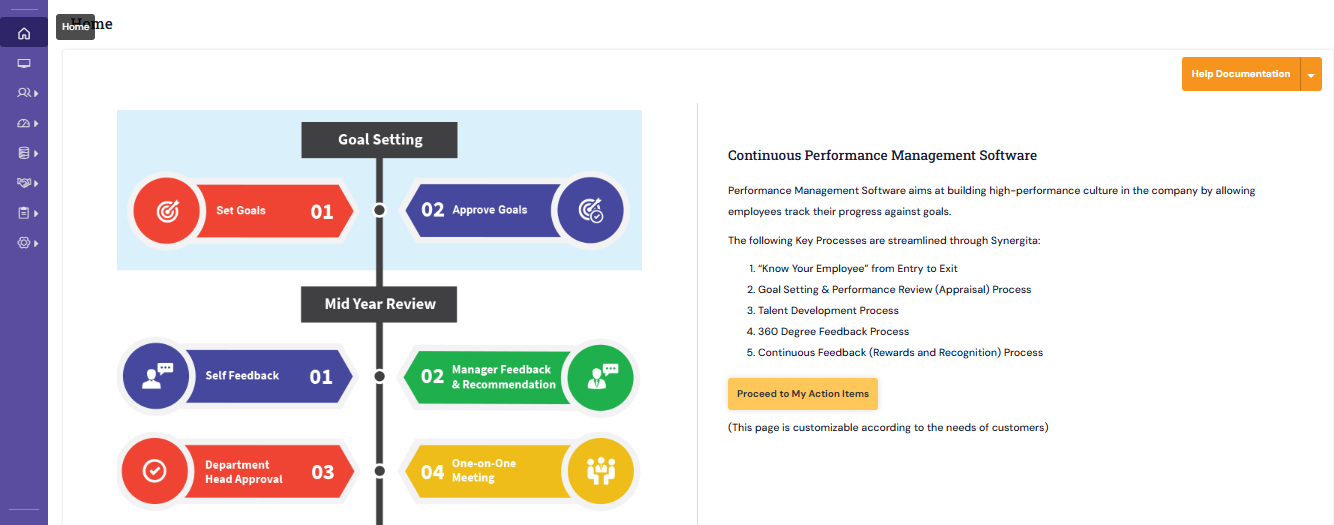
The landing page can be easily customized to reflect your organization’s branding, process, and communication needs.
To configure and publish your organization’s landing page, follow the below steps:
- Navigate to Admin -> Miscellaneous->Landing Page
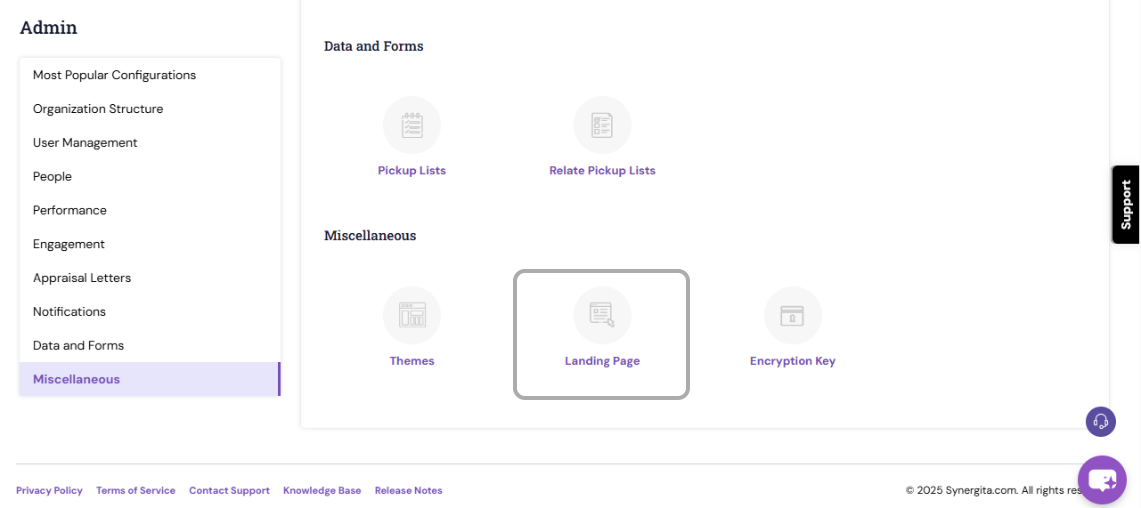
Configure Landing Page :
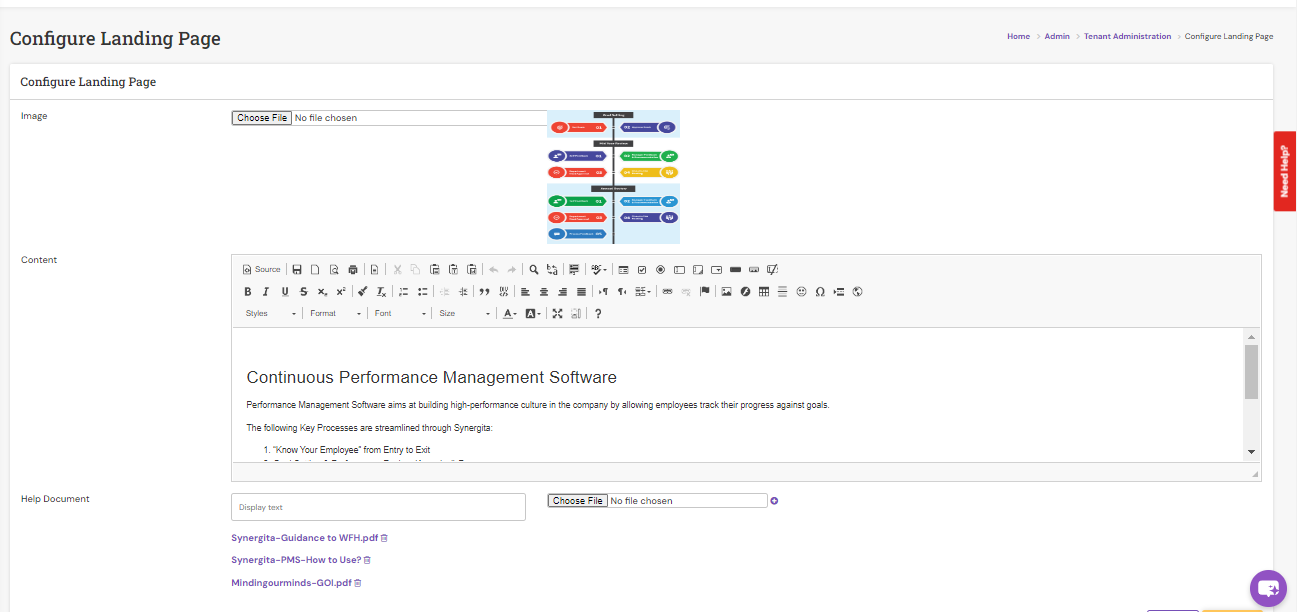
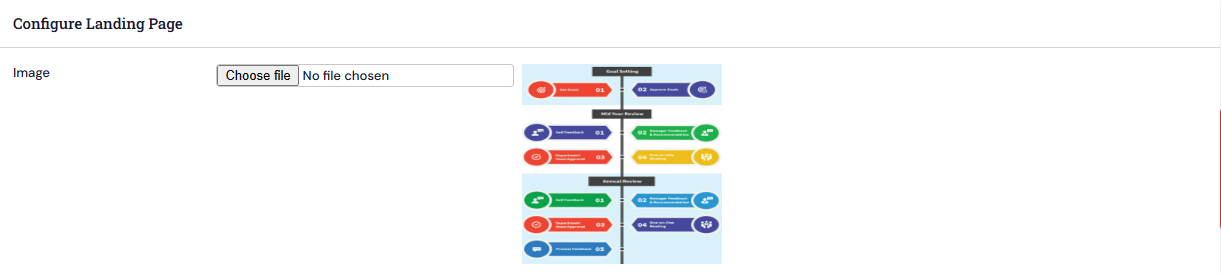
- Click Choose File next to Image to browse and select the required image that represents your organization’s performance appraisal steps. The selected image will appear in the Preview section.
- Use the workspace in the Landing Page Editor to enter the textual content describing your appraisal process or related information.
- Utilize the formatting toolbar to adjust text style, layout, and emphasis as per your requirement.
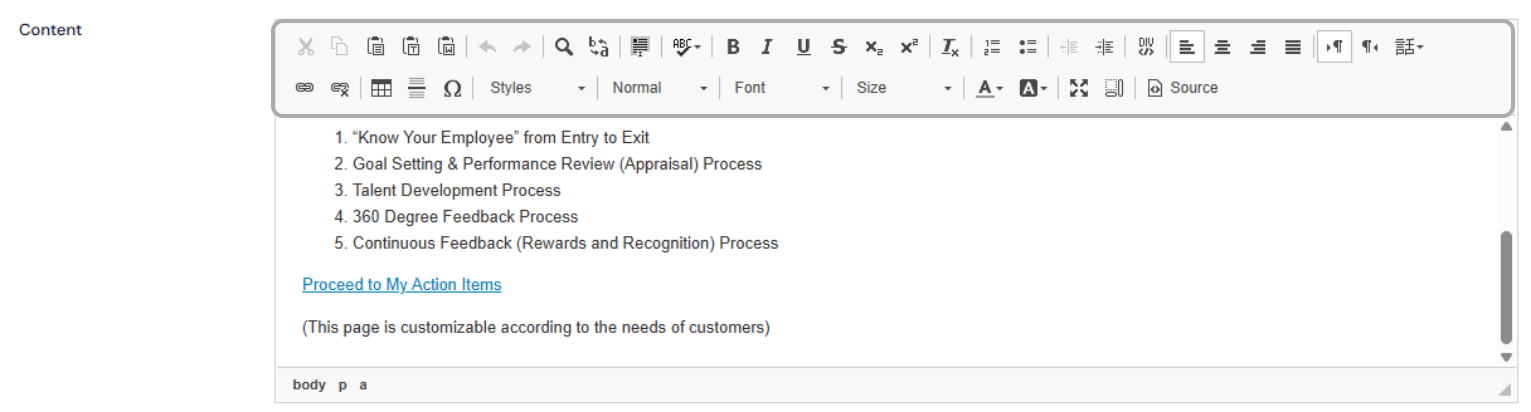
- You can create a hyperlink within the body content that directs users to their Action Items page for quick access.

To Add any user guides/manuals, organization policies, other performance management documents.
- Click Choose File to locate and select the desired PDF file and click Open to upload it.
- Once the file is select, click "+ "to add to the configuration
- You can enter the Display Text that will appear for the document link in the Display Text box.
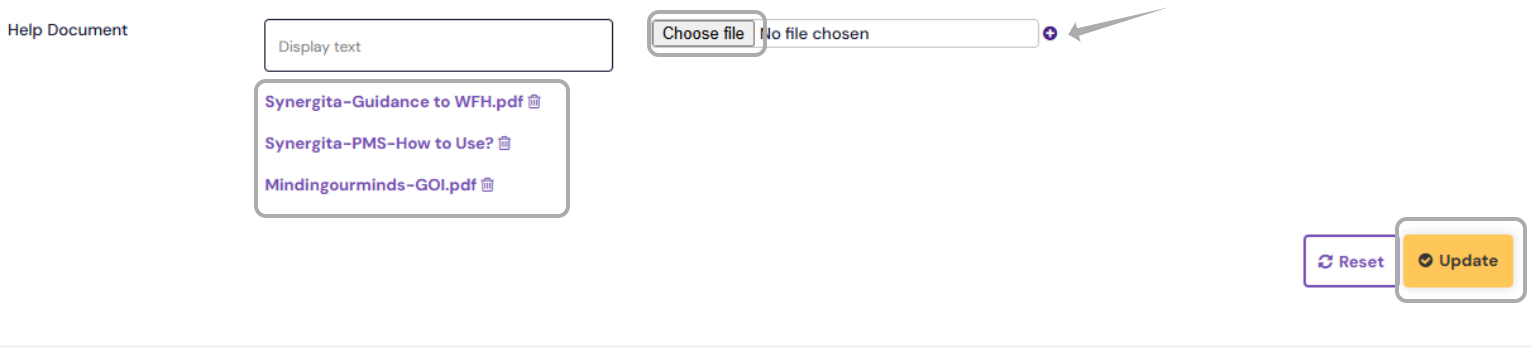
- Once uploaded, the respective documents will appear in the below as preview in the Help Document section that will be available on the Home Page.
- After all the details are configured, click "Update" to apply the changes in the Home page.
After configuration:
The landing page displays the pictorial with the textual content.
Users can download these files by clicking the drop-down menu available under the Help Documentation section for their reference.
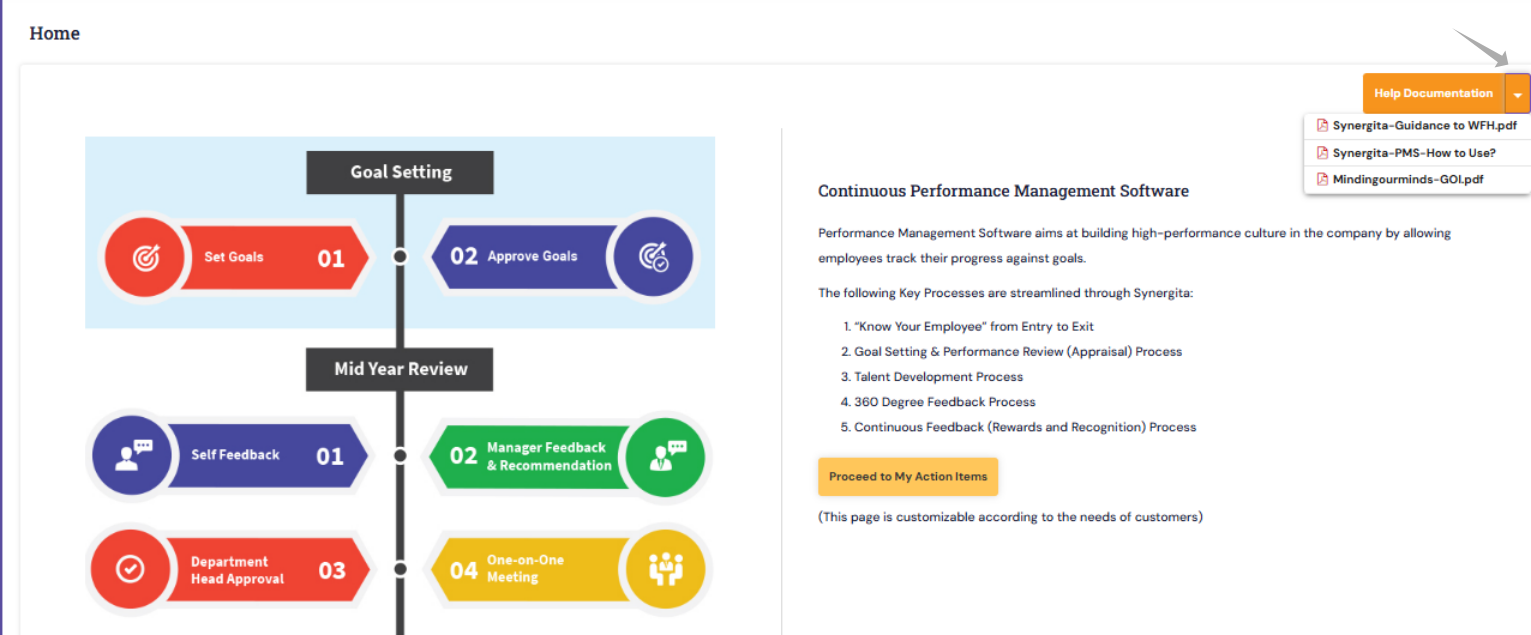
The overall presentation aligns with organization’s branding and performance management framework.
If you have any queries/require assistance, kindly reach out to us at support@sysnergita.com
PS: Synergita implementation for your Organization may vary from how the features are described here. The screenshots given here may also be different from what you see in your system. Please talk to the concerned person in the Organization for any specific queries