
If an employee’s account becomes locked due to multiple incorrect login attempts, administrators can unlock the user directly from the HR Admin login. This ensures the employee can regain access to their account without waiting for the lockout duration to expire.
This article outlines the steps to unlock a user if their account is locked
- Navigate to
Admin > User Management >Users & Password Management
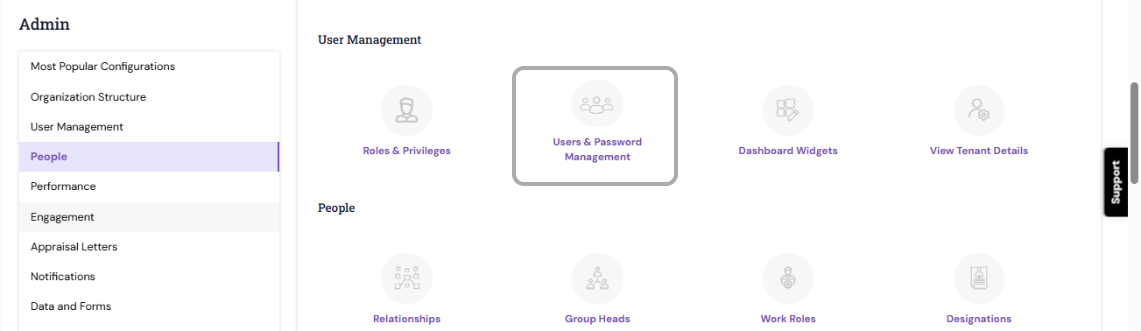
You will be directed to the Search View, which lists all existing users in the system.
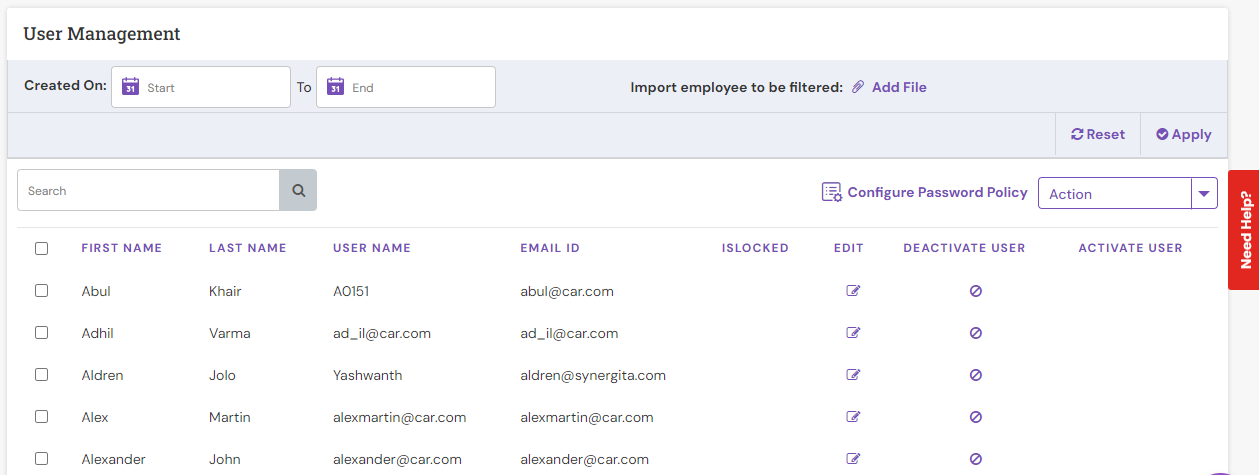
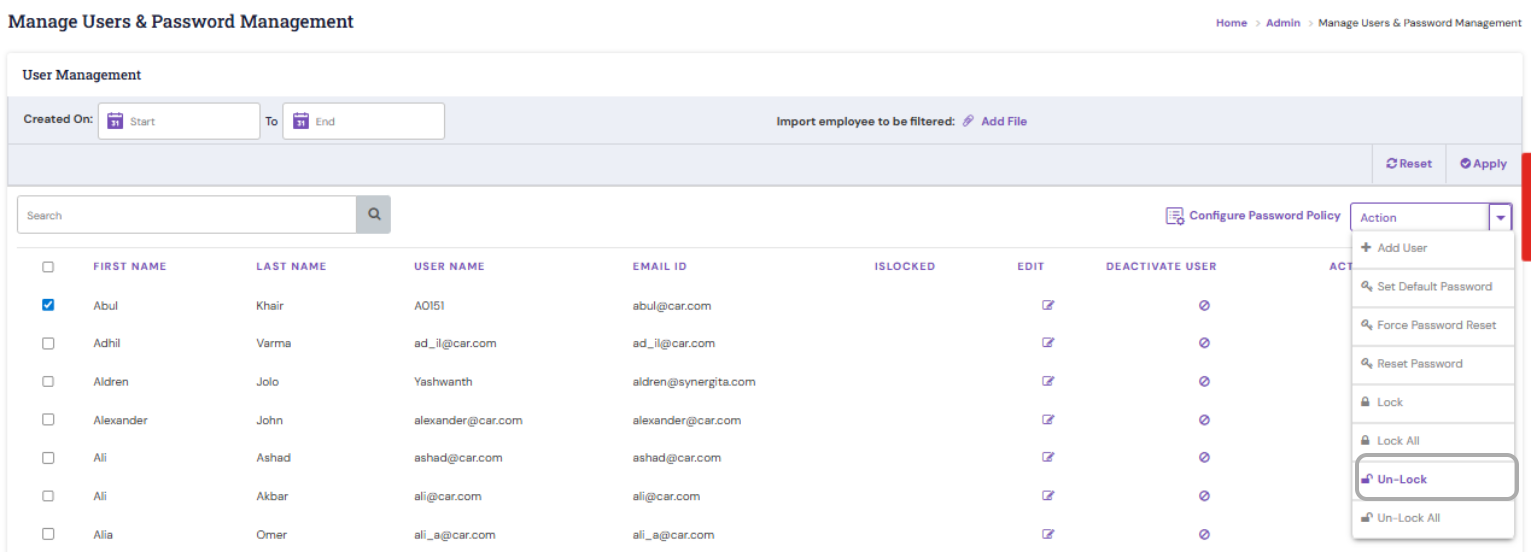
- To unlock an individual user account, select the checkbox next to the employee’s name, click the Action menu dropdown, and choose Un-Lock.
- The system will notify you with a message with total locked/Un-Locked user counts.
You can inform the respective employee to login the system.
Import Users for Bulk Actions
To efficiently filter and perform actions on multiple users:
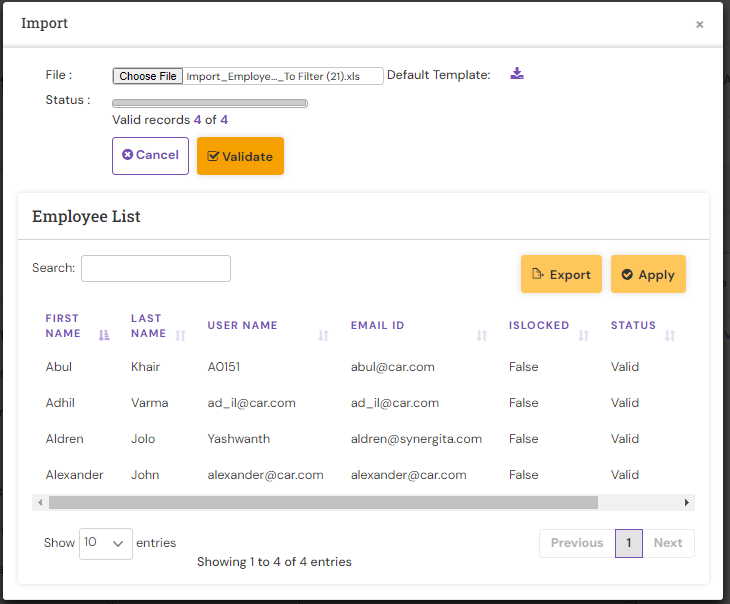
Click Add File next to Import employee to be filtered.
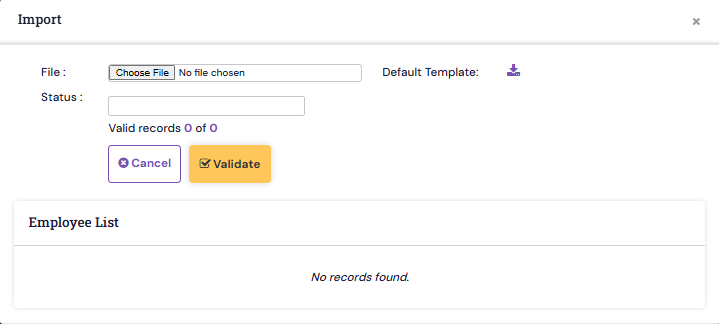
Note: It is recommended to use the Default Template, which contains the required formatting and headers.
Download the Default Template (Excel).
Fill in the required user data. Ensure that each entry includes a valid Email ID.
Click Choose File to upload the completed template.
Click Validate to check for data format and integrity.
Once the file is validated, the number of valid records will be displayed, and the corresponding entries will appear in the Employee List. Click Apply to complete the import process.
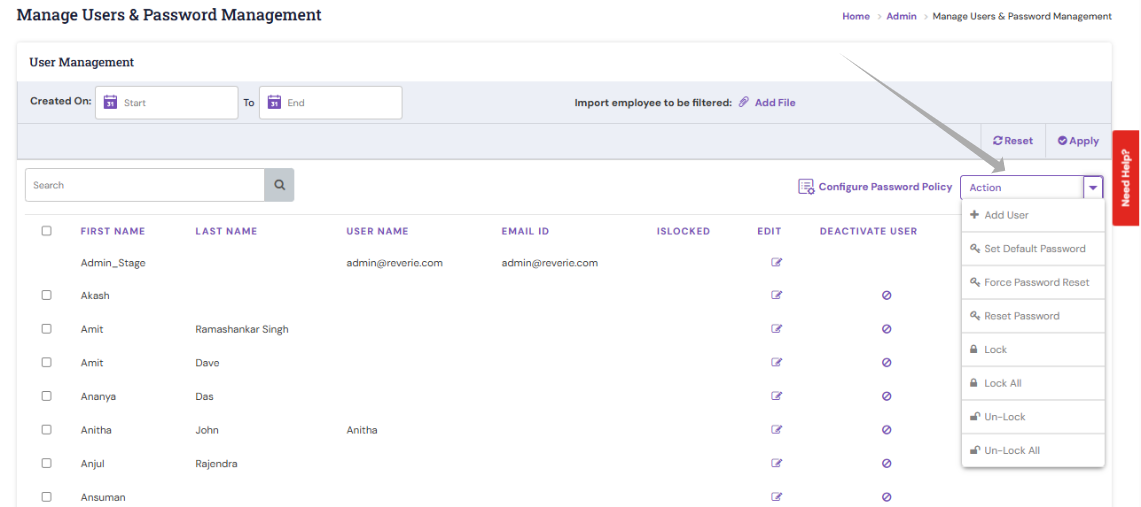
To unlock user accounts in bulk, select the checkbox before the First Name to choose all users. Then, from the Action menu, click Un-Lock All.
- The system will notify you with a message with total Un-Locked user counts.
Post unlocking the user accounts, the respective employees account will be unlocked.
PS: Synergita implementation for your Organization may vary from how the features are described here. The screenshots given here may also be different from what you see in your system. Please talk to the concerned person in the Organization for any specific queries.