
The Password Policy settings allow administrators to define and manage the security requirements for employee logins, such as password length, complexity, and expiration rules. Updating the password policy ensures that all user accounts follow your organization’s security standards.
This article outlines the steps to change or update the password policy for employees.
To configure an password policy for the employees :
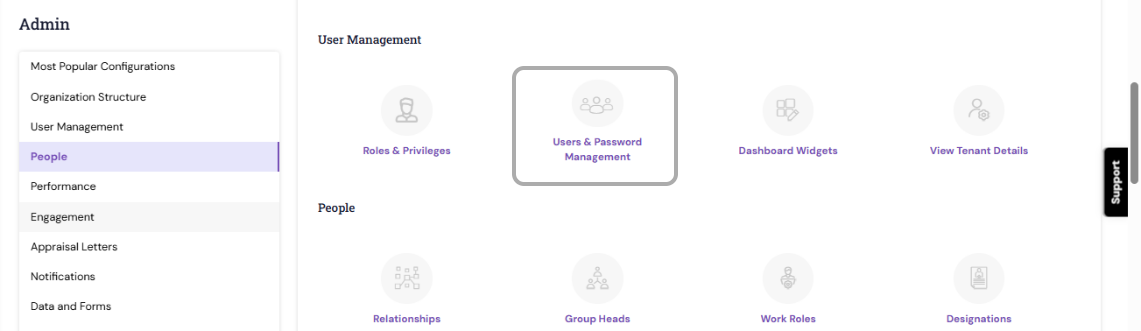
Navigate to
Admin > User Management>Users & Password Management
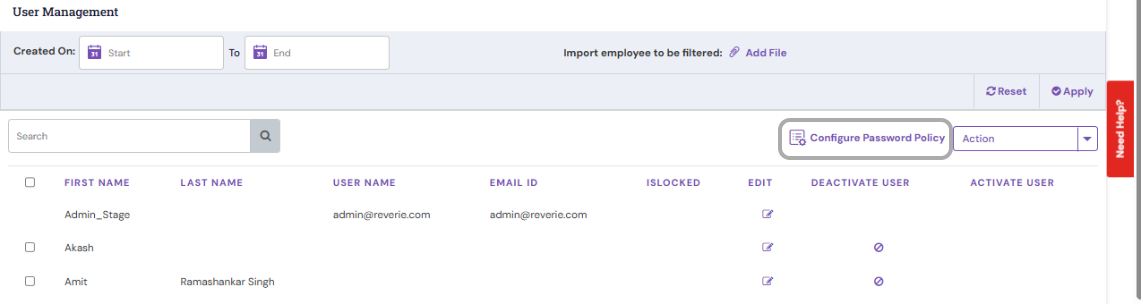
Click on Configure Password Policy to open the password configuration settings.
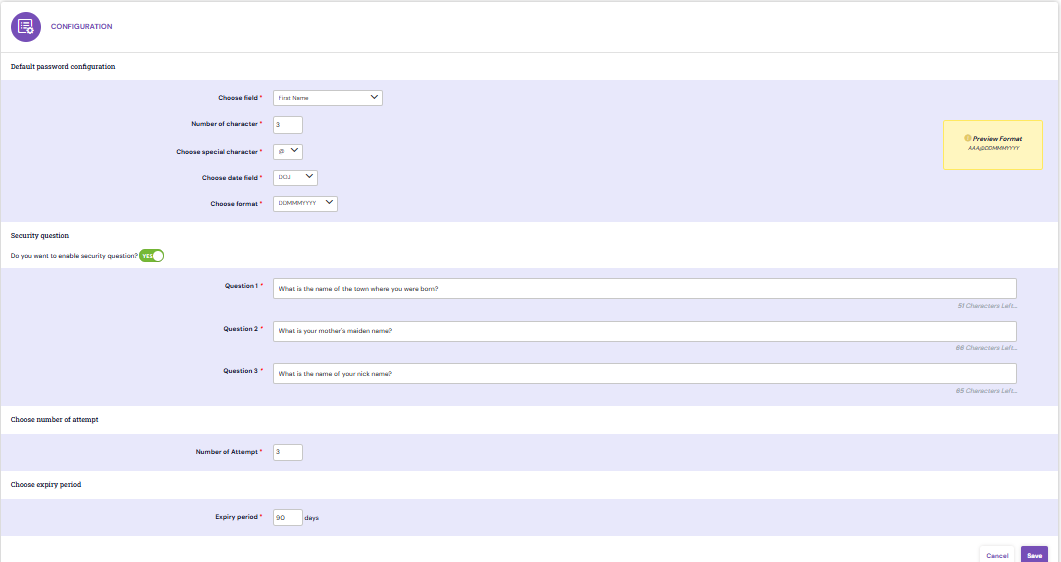
Default Password Configuration:
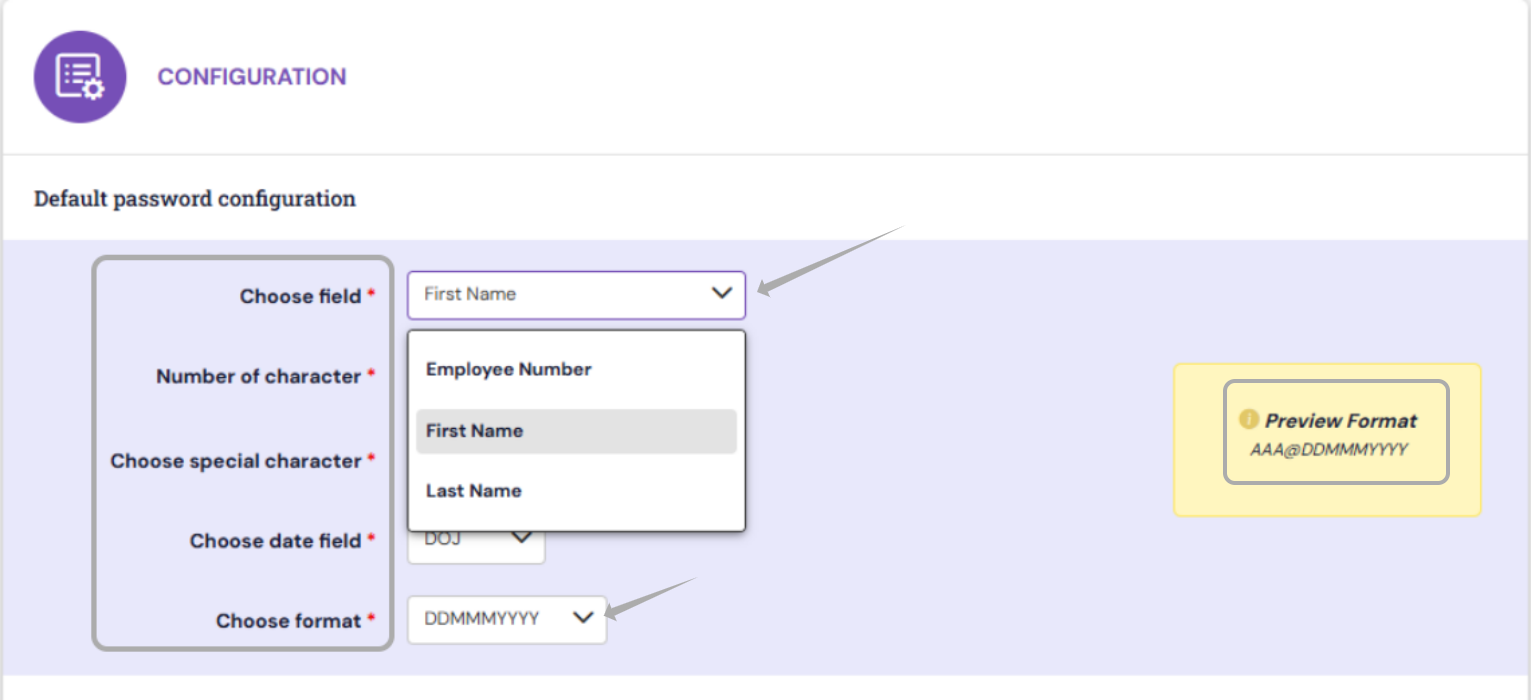
Within the Configure Password Policy section, you can customize the following settings according to your organization’s security requirements:
1. Default Password Format
Set or modify the default password generation pattern based on predefined fields with the combination. Kindly click on the drop down in the respective field to view the option available.
First name->Number of characters-> Special Character-> Date Field, Date Format.
For a combination of " First 3 characters of First Name + @ + Date of Joining (DDMMMYYYY)
Example: For "Abubakar" who joined on 14-Oct-2019 → The password configured is Abu@14Oct2019
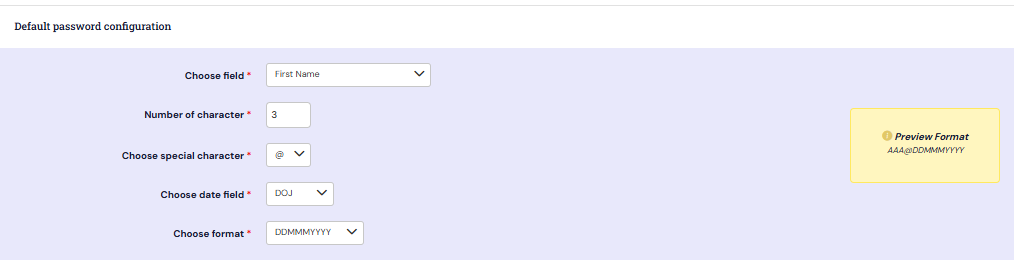
Once the options are selected from the fields, you can view the preview format on the Right side.
2. Security Questions
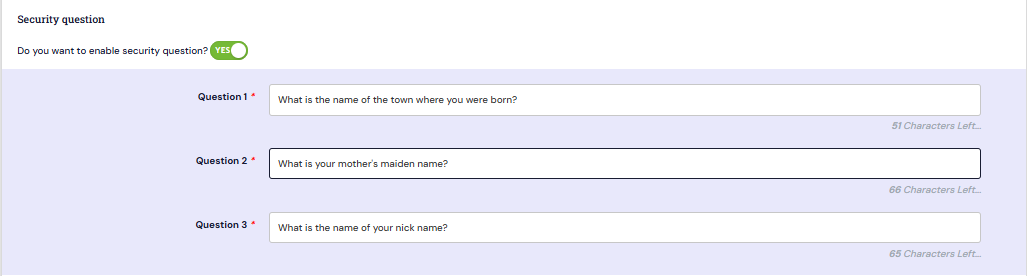
Enable security questions to provide an additional layer of verification during password recovery or reset.
Kindly provide the questions in the Question 1,2 and 3 columns.
This helps enhance account security and reduce dependency on administrative password resets.
3. Maximum Number of Password Attempts

Specify the maximum number of failed login attempts out of 10 before an account is automatically locked.
For example, you can set a limit of 5 attempts to prevent unauthorized access. Locked accounts can later be unlocked by an HR Administrator from the User Management section.
4. Password Expiry Period
Define the validity period for passwords (e.g., 30, 60, or 90 days).
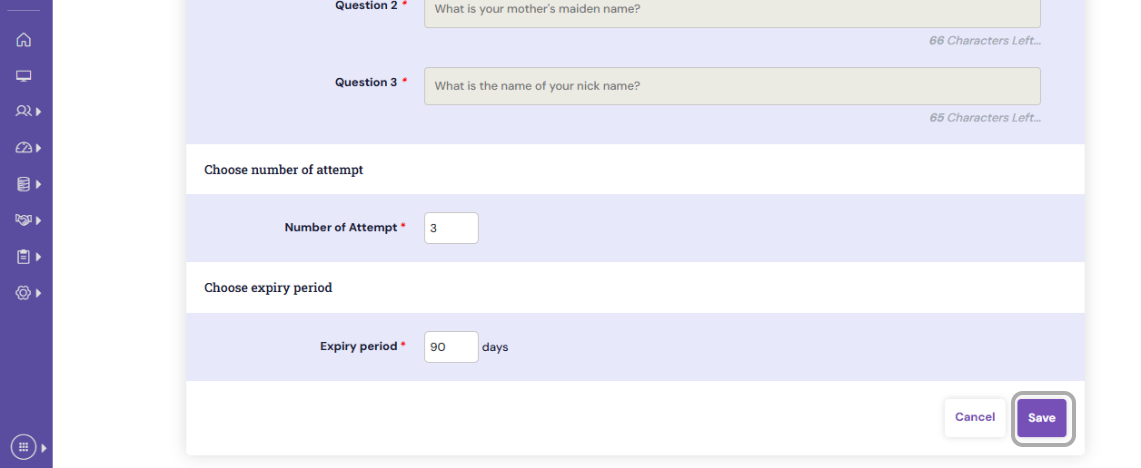
Review all configurations under the Configure Password Policy section and Click Save to apply the updated settings system-wide.
All future user passwords and login attempts will follow the new policy configurations.
If you have any queries, kindly reach out to us at support@synergita.com
PS: Synergita implementation for your Organization may vary from how the features are described here. The screenshots given here may also be different from what you see in your system. Please talk to the concerned person in the Organization for any specific queries.