
The bulk import feature helps import the training details in large numbers into the system easily. This saves time managing the training data in the system for HR teams. The employee's training data populated in the prescribed excel template shall be uploaded in one shot.
To import the employee training details
- Navigate to Admin > Import/Export and click Import Employee training Details.
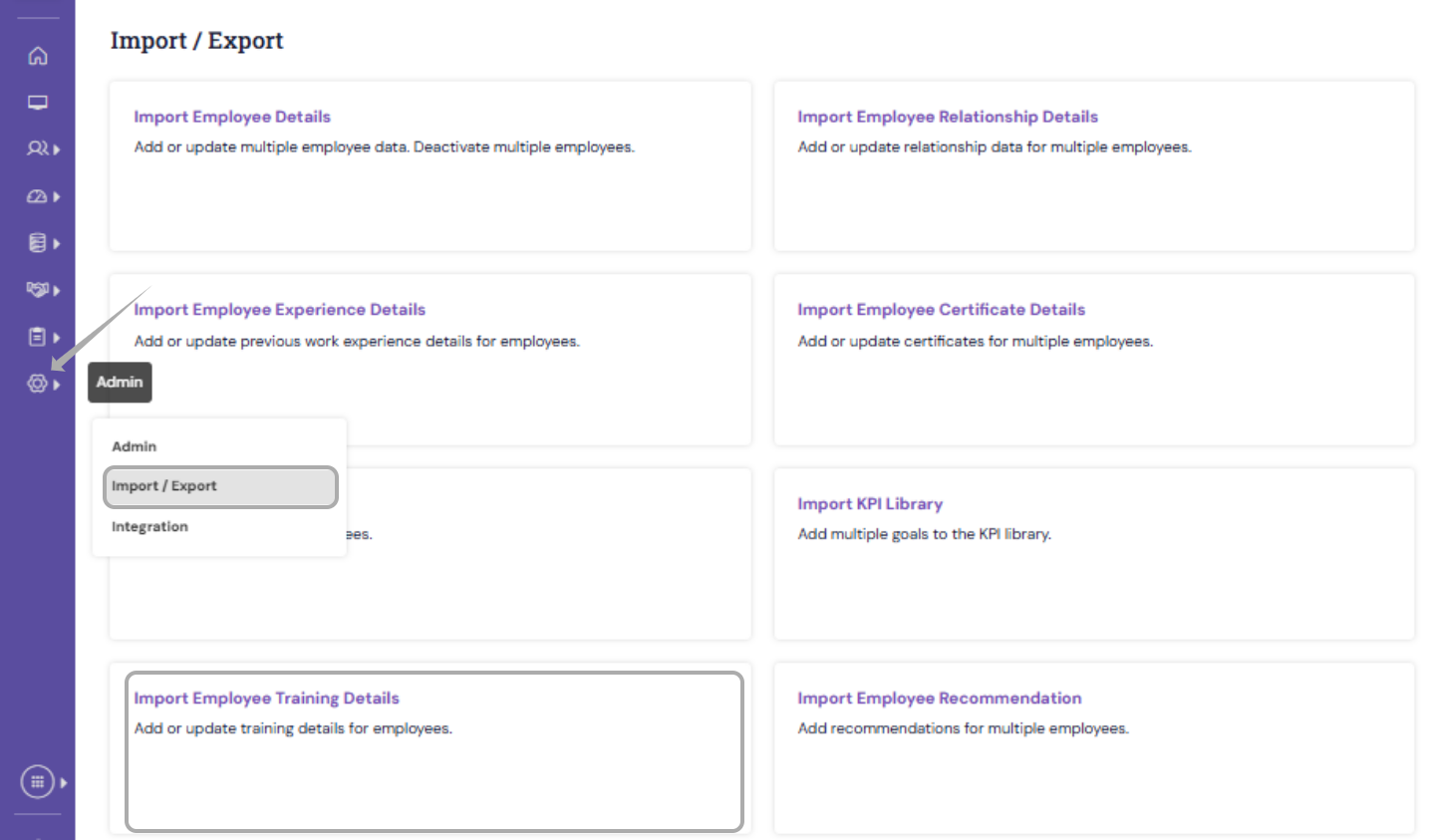
- Click Download Template (Excel) and enter the valid training data in the file. Please ensure that all mandatory fields are filled in before uploading.

The Excel template includes the available fields required for data import.
| Employee Number | Mandatory |
| First Name | Optional |
| Email ID | Optional |
| Type | Optional |
| Course Name | Mandatory |
| No of hours | Optional |
| Attended Date | Optional |
| Score | Optional |
| Internal Trainer Name | Optional |
| Internal Trainer Number | Optional |
| External Trainer Name | Optional |
| Document Name | Optional |
| Comments | Optional |
| Recommended By | Optional |
| Due Date | Optional |
| Training Status | Mandatory |
- After filling in the necessary details in the template, click Choose File under Please select a valid Excel file to import data and then click Upload to import it into the application.
- If you would like to import the training document for an employee, download the Import Training Document Template. After entering the required details, click Import Training Document to upload it into the system.

Once the respective files are added, click Upload to import it into the application.

Once the data are imported , preview the data in the below section and click Upload to import it into the application.
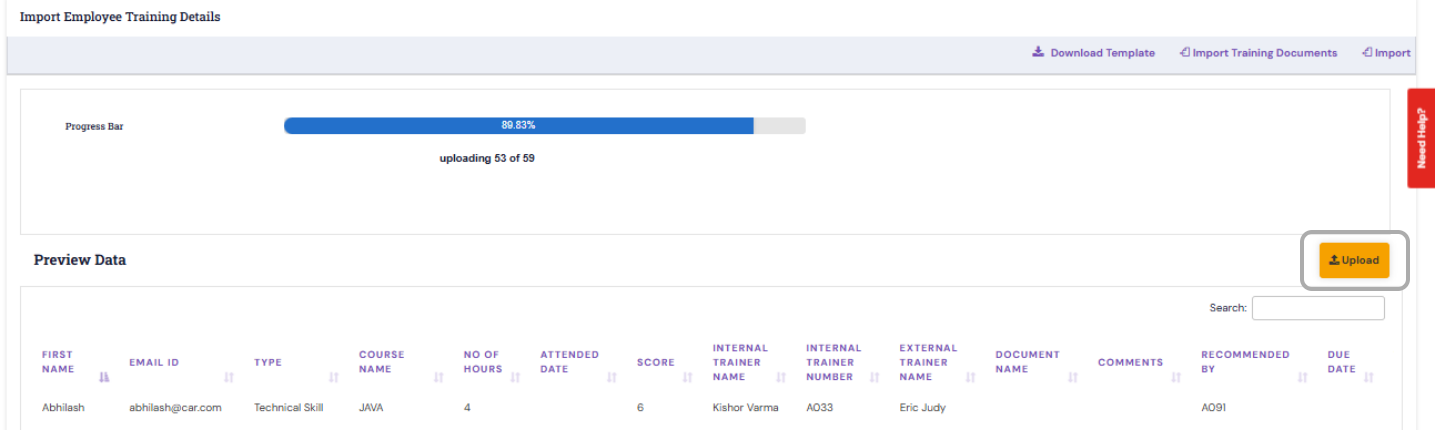
- The system will validate the uploaded data and will be updated to the employee profile.
The training details can be viewed by navigating to Development-> My Teams Training
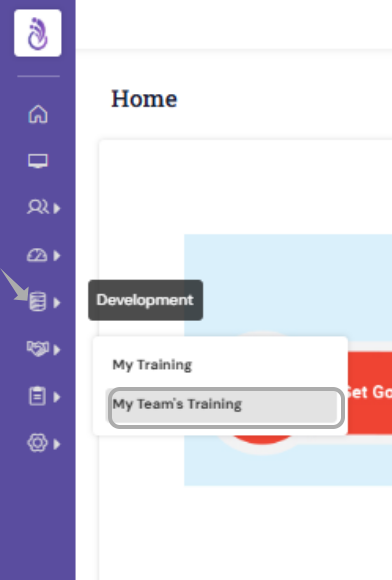
Use the Search box to find a specific team member by entering a keyword, or navigate through the pages to locate the required employee.
To view the training details of a particular team member — including both completed and pending courses — click on the Pending Training Courses link corresponding to that employee.
PS: Synergita implementation for your Organization may vary from how the features are described here. The screenshots given here may also be different from what you see in your system. Please talk to the concerned person in the Organization for any specific queries.
