
The Bulk Import Reviewers feature allows administrators to assign reviewers to multiple employees at once by uploading a predefined Excel file. This helps save time and ensures consistency in assigning reviewer relationships across the organization.
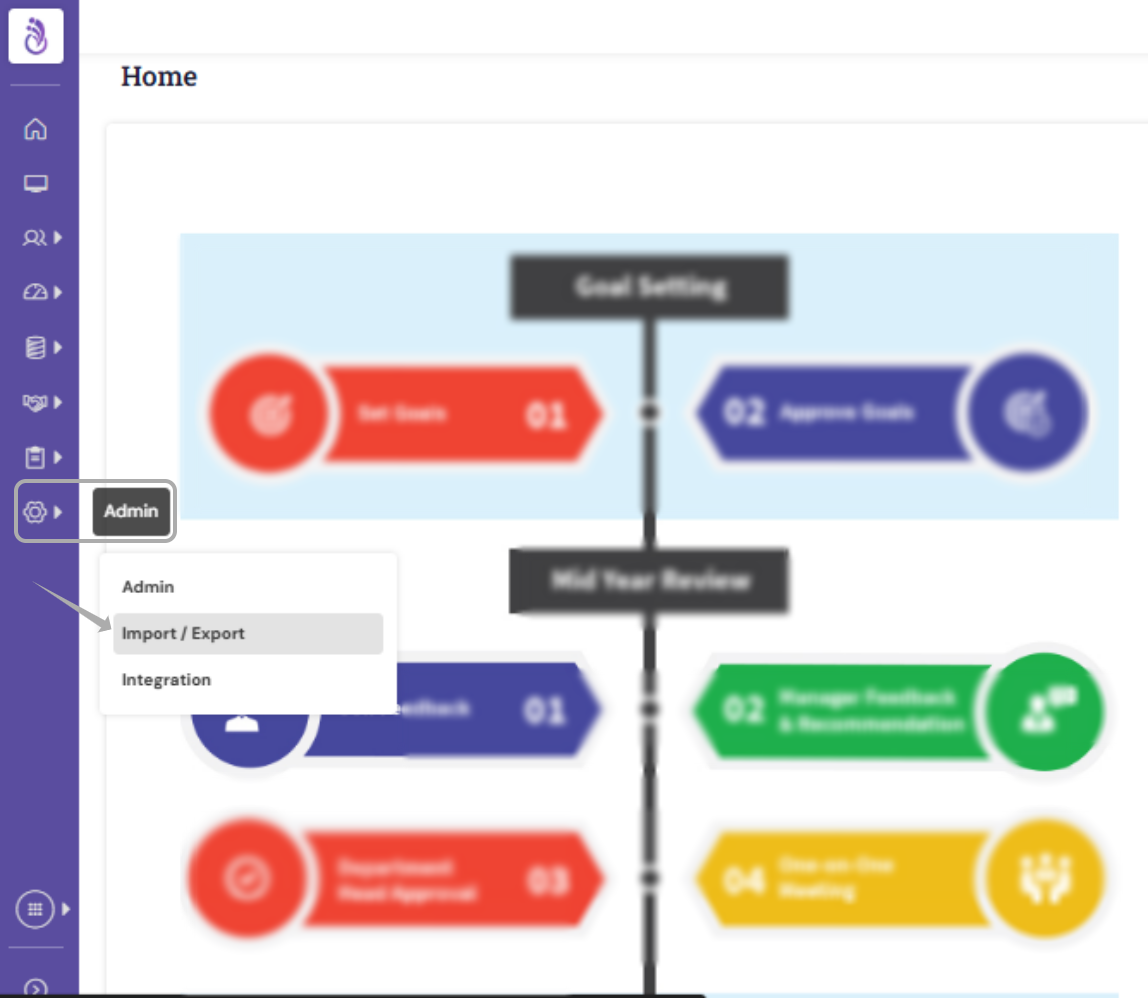
1. Navigate to Admin → Import/Export, and click Import Employee Reviewer
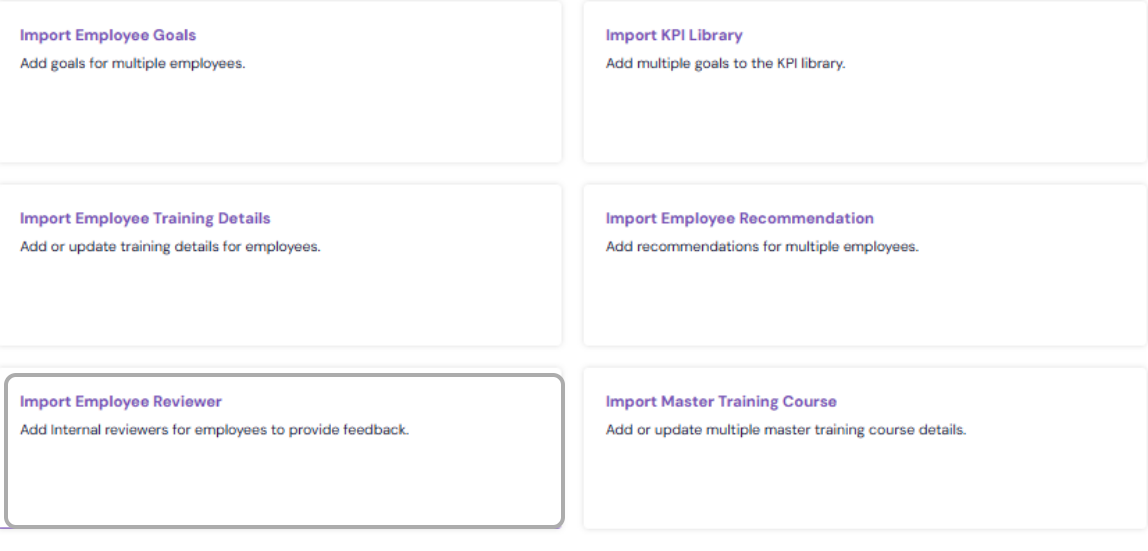
2.Download the Reviewer Template-Download the Reviewer Template Excel file from the system. Populate the file with valid data with the fields. Ensure that all required information is filled in accurately.
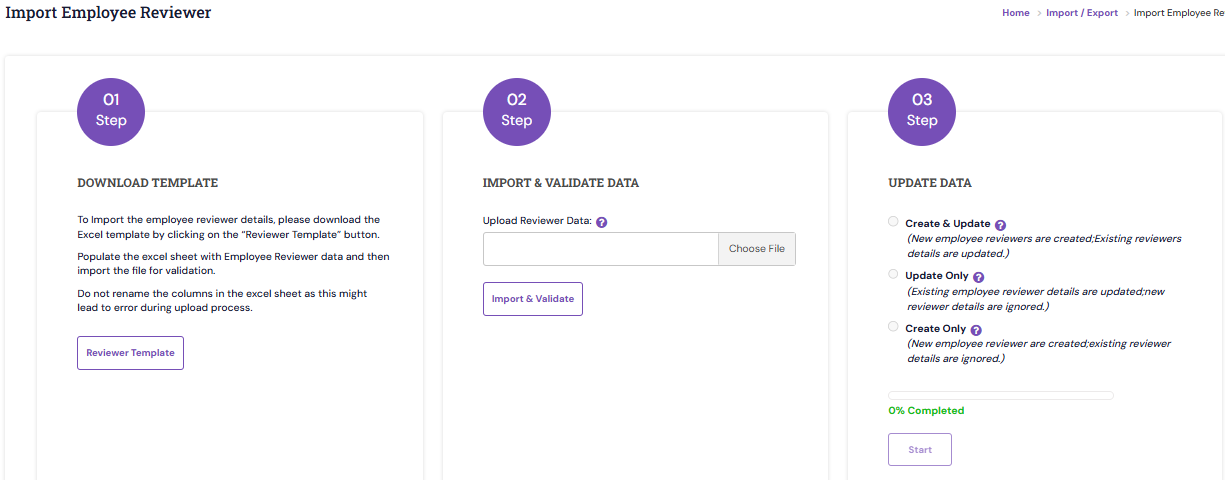
3. Upload and Validate the File
Click Choose File to browse and select the updated Excel file from your system, then click Open.
After selecting the file, click Import & Validate.

The system will validate the uploaded data and display the results once validation is complete.
You can view the total number of successfully validated records and the total number of error records.
If errors are found, download the error file, correct the issues in Excel, and re-upload the file for validation again.
4. Once the data file is uploaded and validated successfully, choose one of the following options to complete the import process:
Update and Create – New employee reviewers are created; Existing reviewers details are updated.
Update Only – Existing employee reviewer details are updated; new reviewer details are ignored.
Create Only – New employee reviewer are created; existing reviewer details are ignored.
5.Finalize the Upload-As a final step, click Start to upload the validated data into the system.
PS: Synergita implementation for your Organization may vary from how the features are described here. The screenshots given here may also be different from what you see in your system. Please talk to the concerned person in the Organization for any specific queries.