
Maintaining an accurate and well-structured department hierarchy is essential for organizing employee information and ensuring smooth workflow management. In Synergita, administrators can easily create new departments, assign parent nodes, update existing ones, or deactivate them when no longer needed.
The steps to create a new department are as follows:
Navigate to
Admin ->Organization structure->Departments
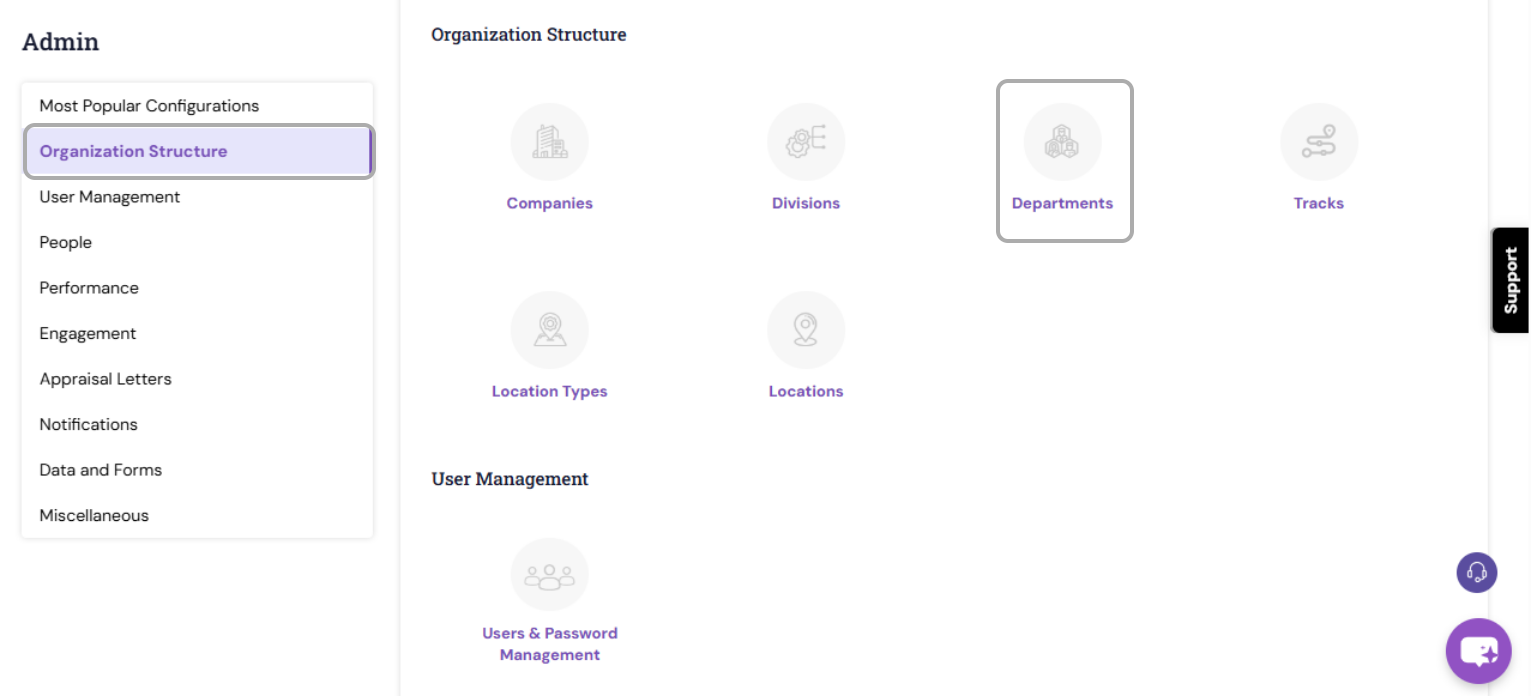
1. Click the Add Button-A new editable row will appear under each column, allowing you to enter the department details.
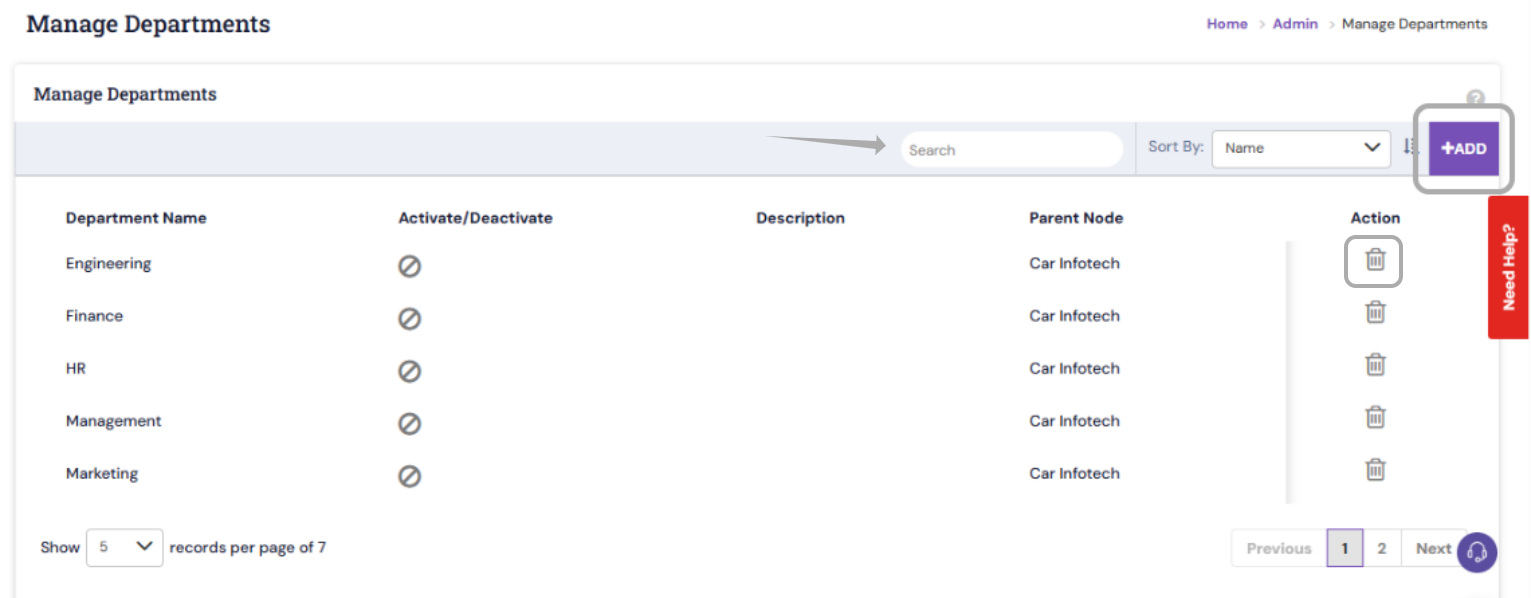
2. Enter Department Information-Provide the following details:
- Department Name
- Description (optional, for additional clarity).

3. Assign a Parent Node - If the department should fall under a parent company , select the appropriate Parent Node from the dropdown. This helps maintain a clearly defined organization structure.
4. Activate/Deactivate a Department-Departments can be:
- Deactivated temporarily when not in use
- Reactivated later as required
This ensures only relevant departments appear in employee profiles during the configurations.
5. Save the Department-Click Save to add the department to the system.

Once saved, the new department will be visible in the departments section and under the Department field in the employee profile within the Organization Structure section.
How to Edit an Existing Department
Locate the department you wish to update->Click the corresponding row.->Modify the required details (name, parent node, description, etc.).
Save the changes.

PS: Synergita implementation for your Organization may vary from how the features are described here. The screenshots given here may also be different from what you see in your system. Please talk to the concerned person in the Organization for any specific queries.