
Pickup list represents the drop-down fields, which appear across the product. Admin can use the Manage Pickup Lists page to configure pickup lists.
The steps to create a new pickup list are as follows.
To create a new Pickup list
1. Navigate to Admin > Admin
2. Under Data and Forms, click Pickup Lists
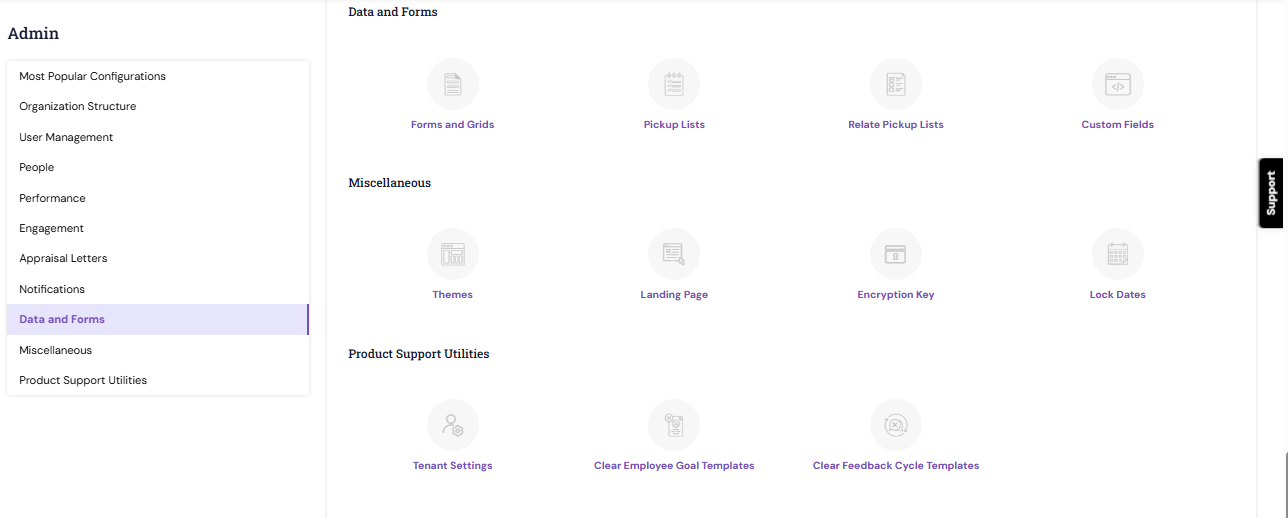
3. Click the Add button. The ADD PICKUP LIST DETAILS section appears.
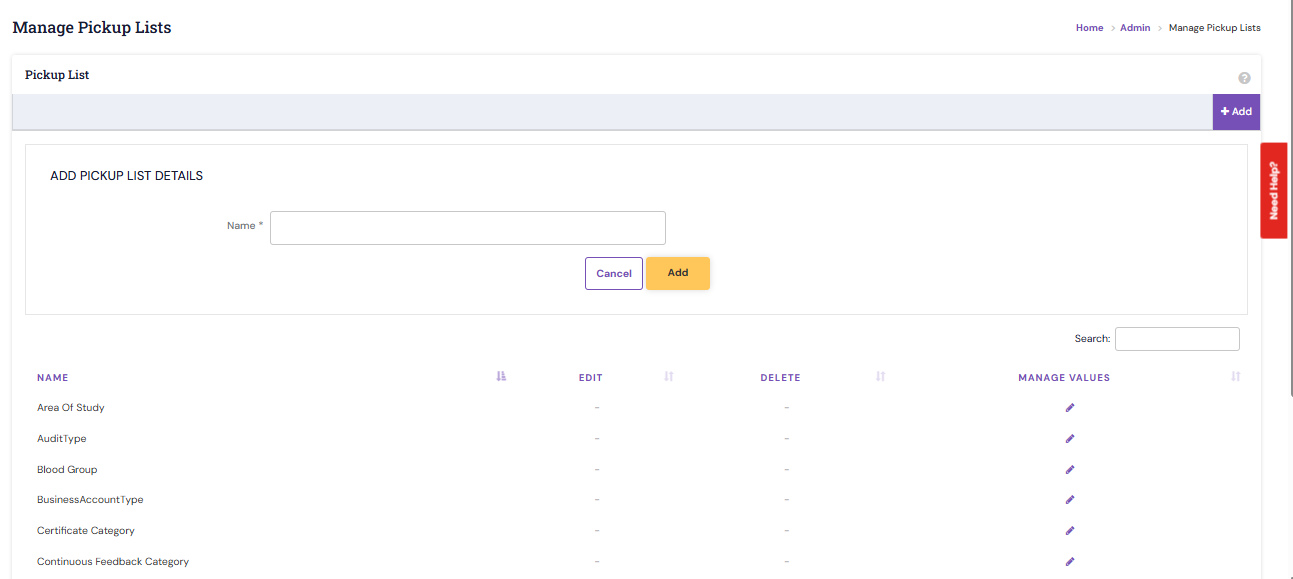
4. Specify the name of the pickup list master and click Add. This is the name of the pickup list field to which single-select pickup list values will be assigned.
5. To configure the pickuplist values, click the Edit icon  under Manage Values relevant to the newly created pickup list master.
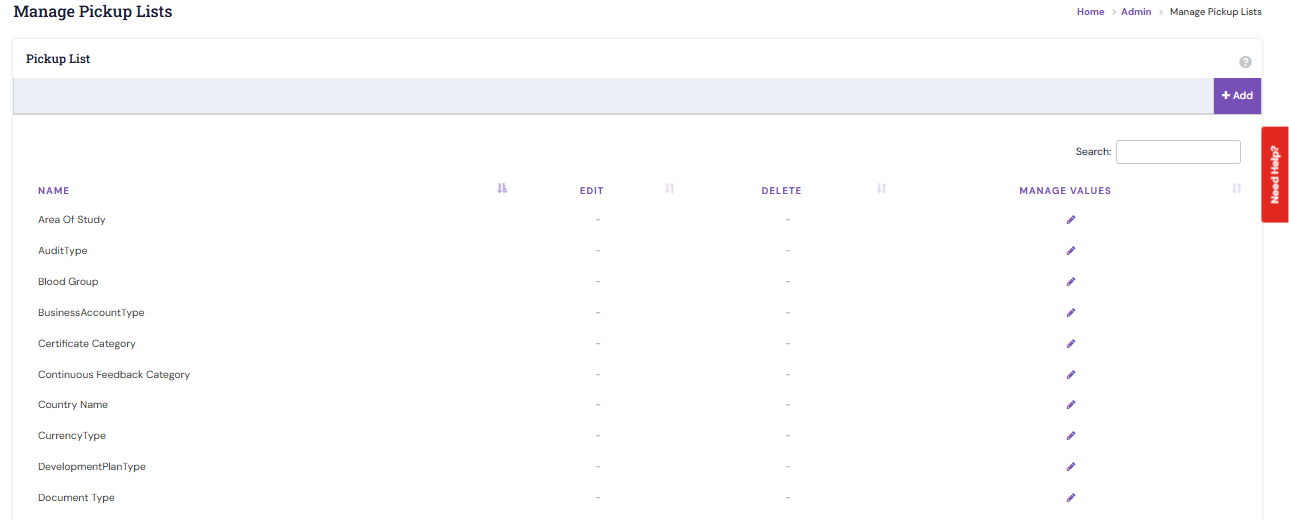
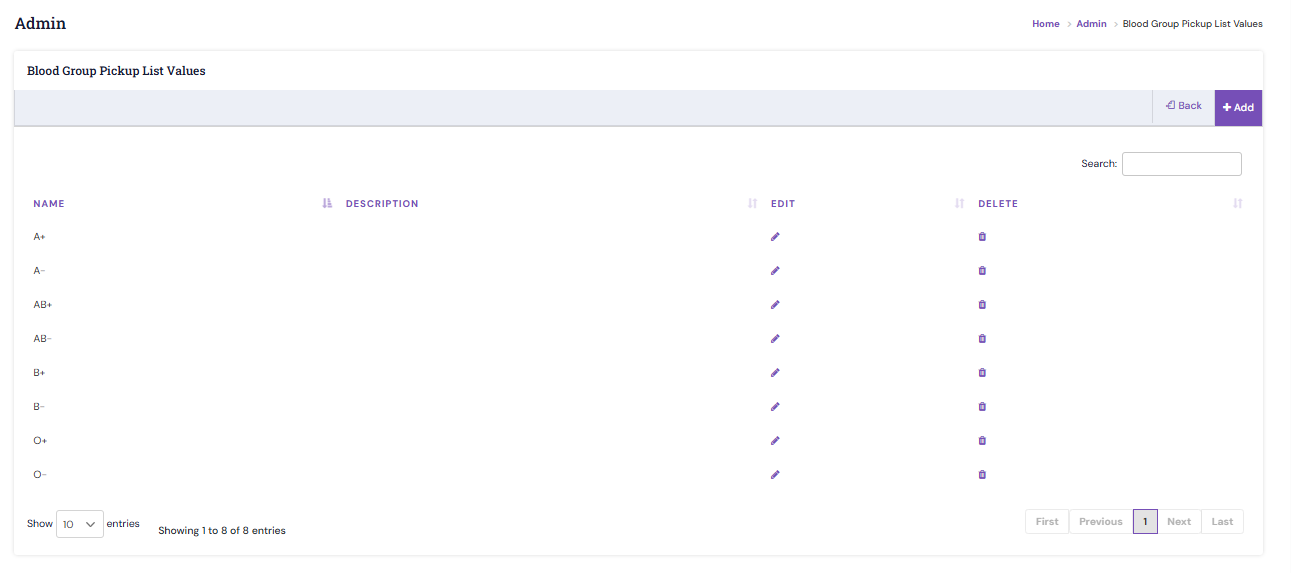
6. Click the Add button. The ADD PICKUP LIST VALUE section appears.
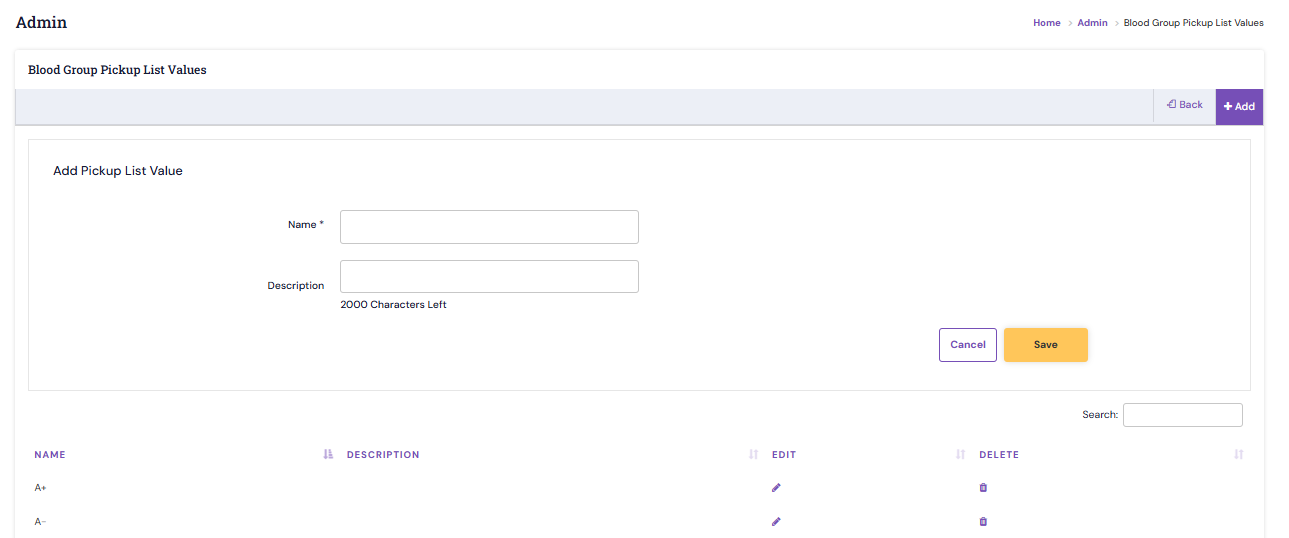
7. Specify the name and description for the pickup list value that corresponds to the master pickup list field and then click Save.
8. You can add one or more pickup list values based on business requirements.
Note: Any changes to the PMS Configuration will be handled by the Synergita team. We request HR users not to make any changes directly, as this may impact configured processes.
|
PS: Synergita implementation for your Organization may vary from how the features are described here. The screenshots given here may also be different from what you see in your system. Please talk to the concerned person in the Organization for any specific queries.