
If you want to relate or map one pickup list with another pickup list or if you want to create a hierarchy of pickuplists (Country > State > City) with the cascaded relationship, you can use the Relate Pickup Lists page to link parent and child pickuplists.
For example, you can link pickuplist values of City to the pickuplist values of parent pickuplist of State that in turn acting as the child pickuplist to link to the pickuplist values of parent pickuplist of Country.
The steps to mapping parent and child pickuplists are described in admin perspective. The steps are as follows.
To set up the parent and child pickup list relation
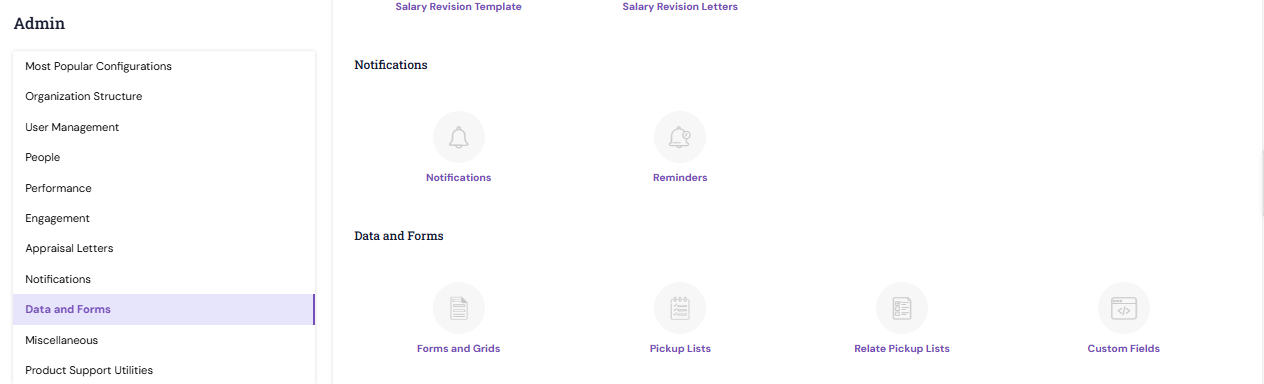
1. Navigate to Admin > Admin
2. Under Data and Forms, click Relate Pickup Lists
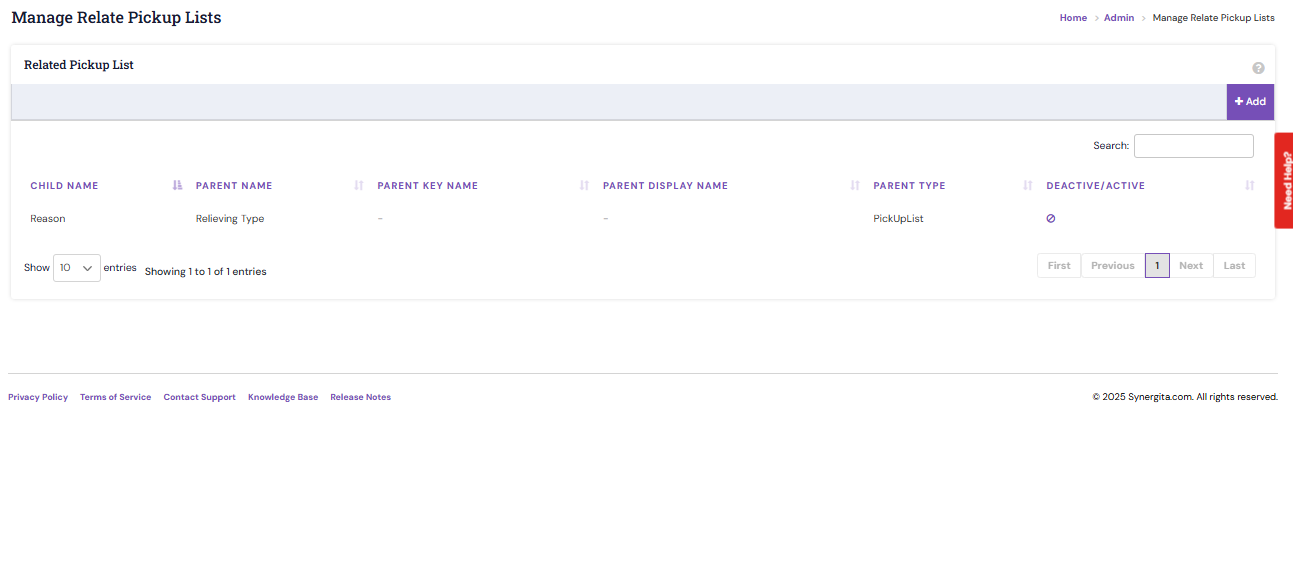
Search view lists all the child and parent pickuplists.
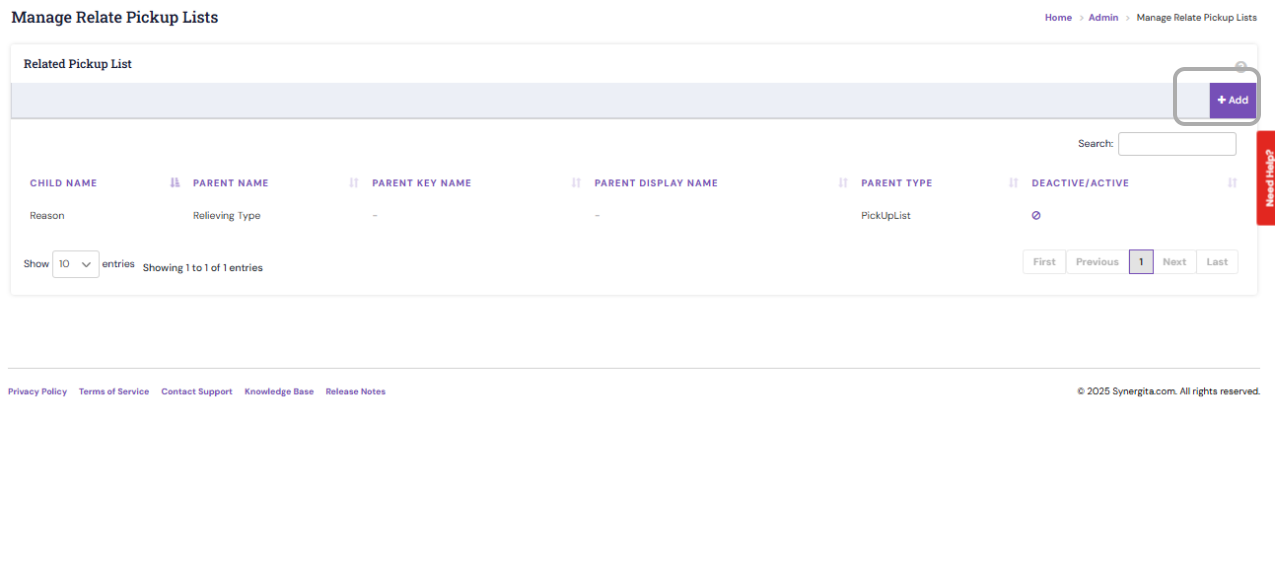
3. To link child pickup list with the related parent pickup list, click the Add button.
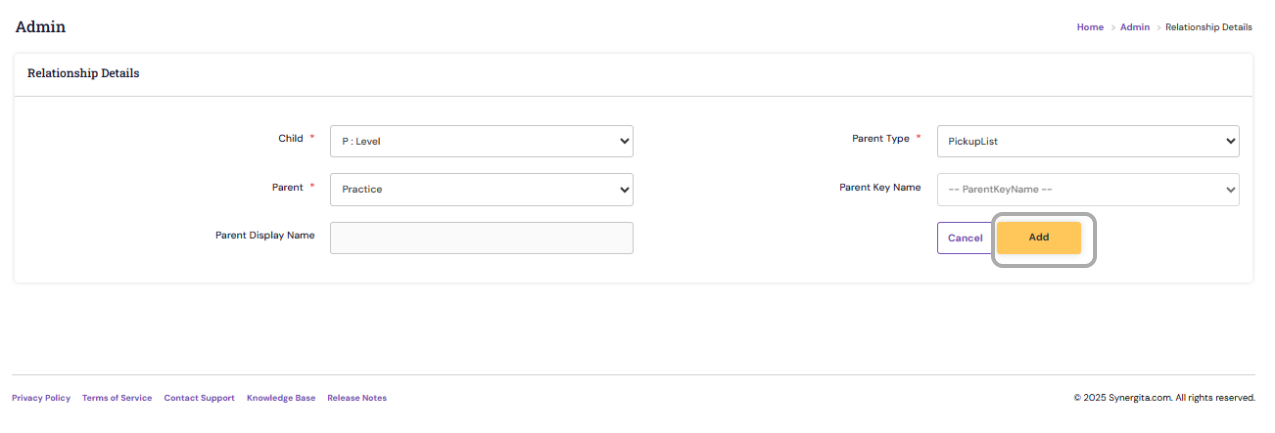
4. Select the child and parent pickup lists that are to be mapped.
5. If the parent type is chosen as an entity, provide the Parent Display Name for that entity to be exposed in UI.
6. On Adding, the values of each child pickup list values will be linked to the parent pickup list.
Note: Any changes to the PMS Configuration will be handled by the Synergita team. We request HR users not to make any changes directly, as this may impact configured processes.
|
PS: Synergita implementation for your Organization may vary from how the features are described here. The screenshots given here may also be different from what you see in your system. Please talk to the concerned person in the Organization for any specific queries.