
Widget Roles determine which users can view and access specific widgets within the Performance Management System dashboard. By configuring widget roles, administrators can ensure that relevant information is displayed to the right users based on their responsibilities and permissions.
Synergita provides several dashboard widgets. As a HR administrator, you can enable these widgets to required roles.
The steps to enable the widget are described in admin perspective. The steps are as follows.
To set up widget role
1. Navigate to Admin > Admin
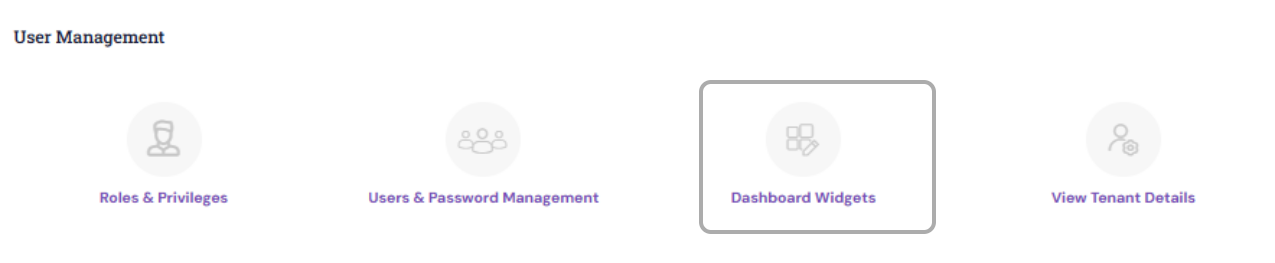
2. Under User Management, click Dashboard Widgets
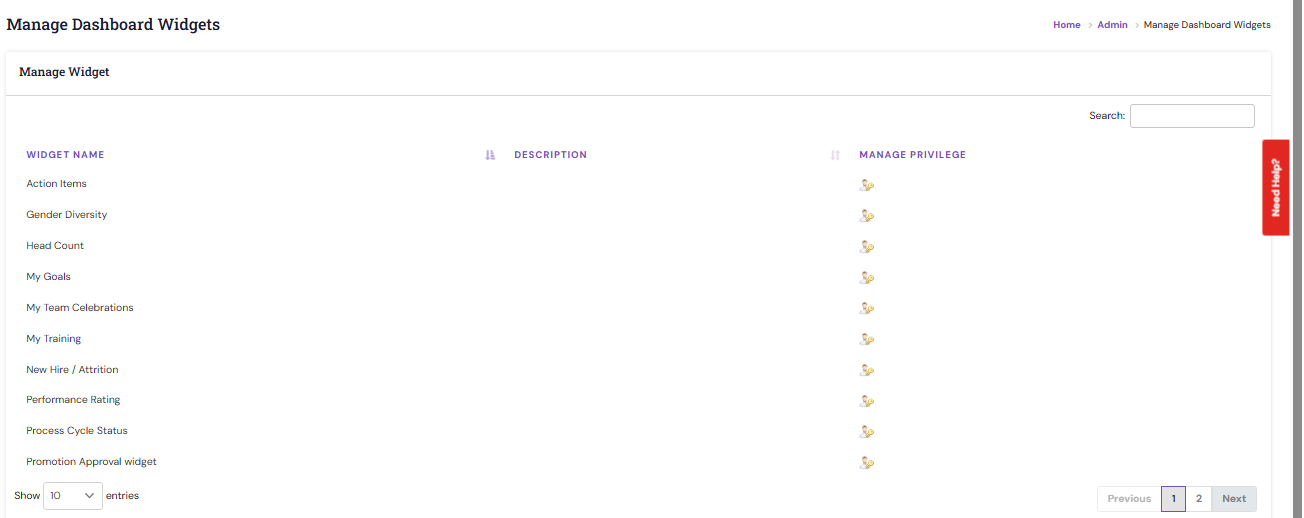
This view lists all the available dashboard widgets. The widgets include
- Action Items
- Gender Diversity
- Head Count
- My Goals
- My Team Celebrations
- My Training
- New Hire / Attrition
- Performance Rating
- Process Cycle Status
- Promotion Approval widget
- Skill Approval Widget
3. To add a widget to an employee’s dashboard, click the Manage Privilege icon  relevant to the widget row.
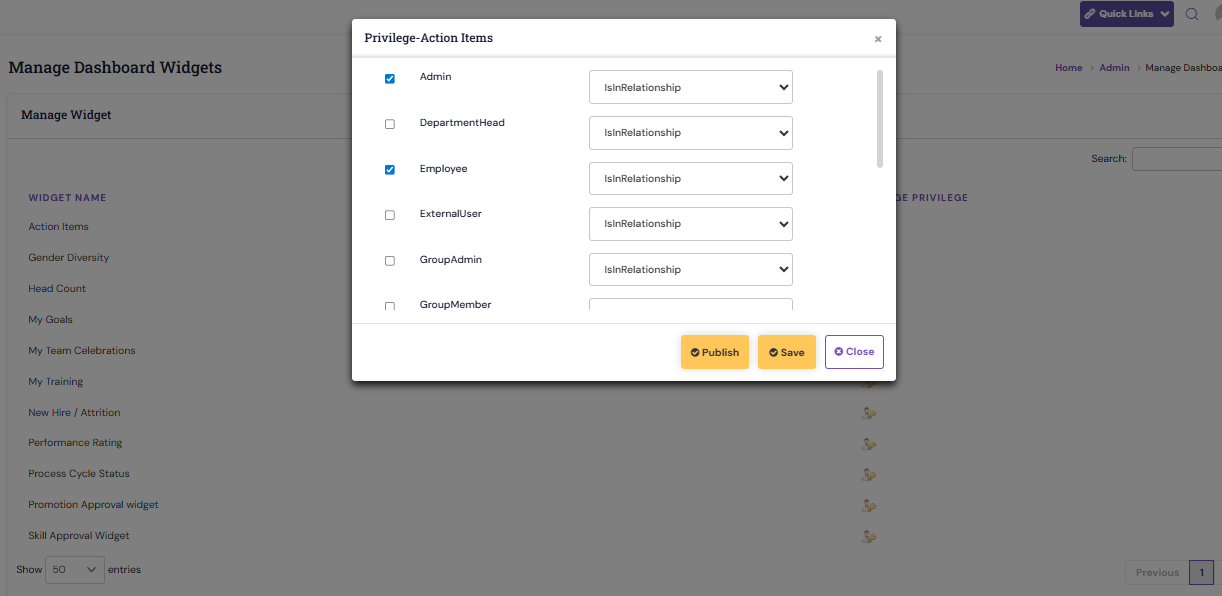
4. Set permissions All or IsInRelationship against the roles to view all data or data relevant to the linked relationship. These relationships determine the scope of data, which are shown in the widgets. For example, if you enable "All", all the employee data are shown; if you select IsInrelationship, only the team members are shown.
5. On saving and publishing, the widgets will appear on the concerned employee’s dashboard and the employee can perform actions on the widgets to drill-down the chart or filter data to view dashboard result.
Note: Any changes to the PMS Configuration will be handled by the Synergita team. We request HR users not to make any changes directly, as this may impact configured processes.
|
PS: Synergita implementation for your Organization may vary from how the features are described here. The screenshots given here may also be different from what you see in your system. Please talk to the concerned person in the Organization for any specific queries.