
The feedback templates (like performance review forms, 360° feedback forms, or surveys) can be mapped to employees based on their designation.When a performance cycle begins, the system will automatically assign the mapped template to the relevant employees based on their designation (mapping logic).
HR must ensure that only the respective options, as defined by the configured Mapping Logic, are selected while creating or updating the template
Steps to configure the template based on specific fields.
In Synergita, templates can be mapped using various fields (based on mapping logic) from the employee profile such as Designation, Department, Location, Track, Level, and Work Role, allowing organizations to assign the right templates to the right set of employees.
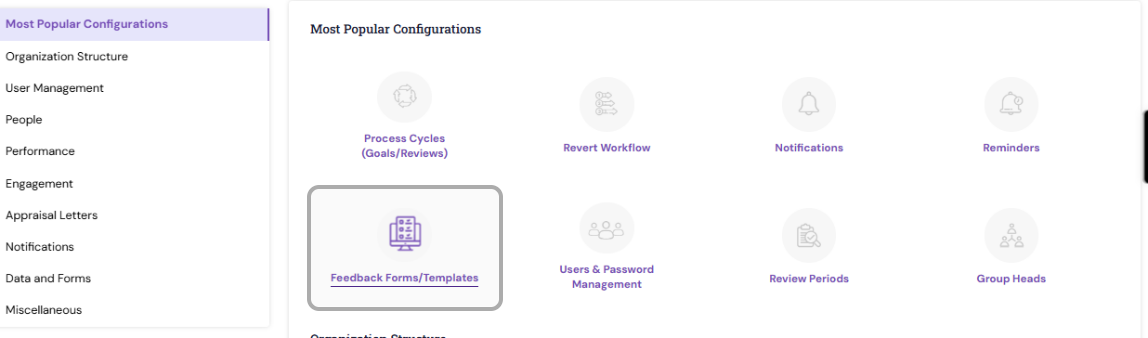
Navigate to Admin → Most popular configuration →Feedback Forms/Templates
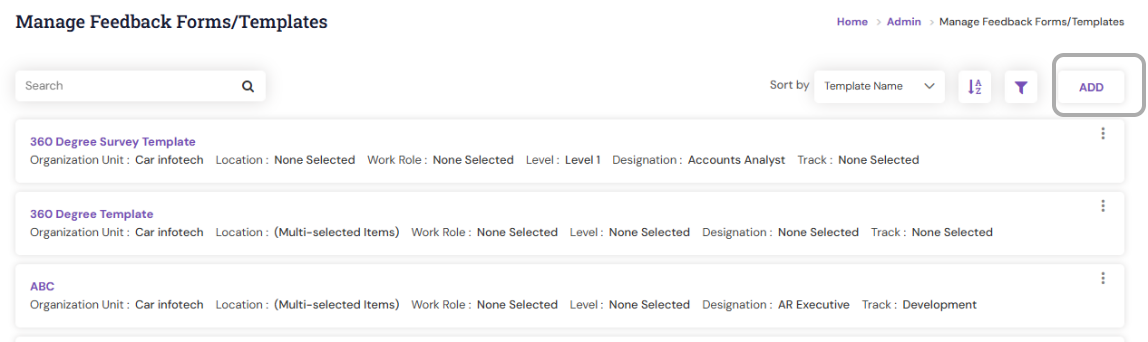
To create a new template, click the Add button located on the right-hand side of the page and proceed to configure the template details.
Provide the Template Name and Description, and from the available options—such as Department, Designation, Location, Level, or Work Role—select the relevant mapping criteria as per the mapping logic.
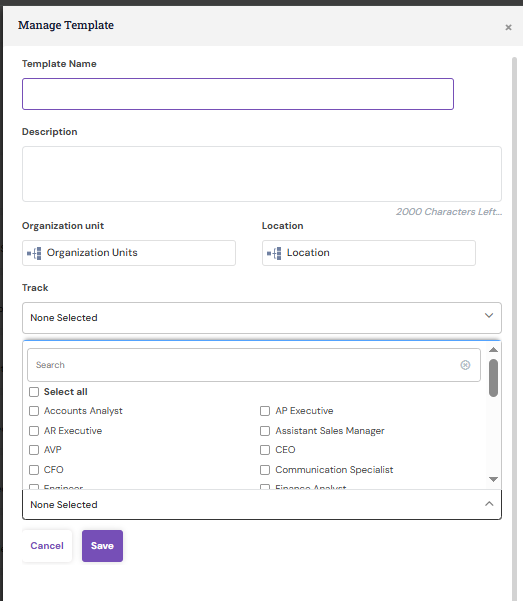
A new template will be created in the system with the provided information.
Once the template is created, open it to add the relevant Goals, Attributes, and select the appropriate Review Group and Grade Scale for the template.
After entering all the required details, click Save and then Publish to finalize and activate the template.
PS: Synergita implementation for your Organization may vary from how the features are described here. The screenshots given here may also be different from what you see in your system. Please talk to the concerned person in the Organization for any specific queries.