
Team OKRs play a pivotal role in driving collaboration and focus within a team, ensuring they contribute effectively to the overall company goals. With Synergita OKR, team leaders and members can set and track team-specific objectives to achieve remarkable results. Here's how you can create team objectives efficiently:
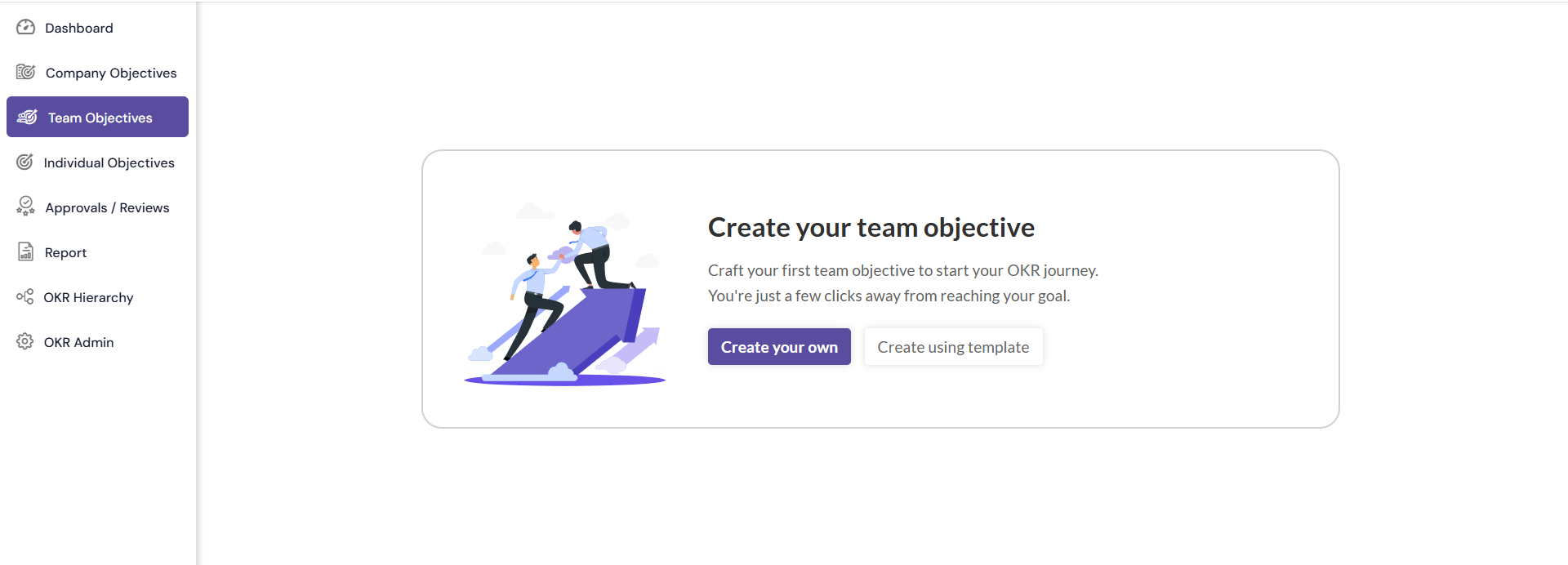
Step 1: Access Team Objectives
- Click on Team Objectives in the left navigation menu to access the Team Objectives creation page.
Step 2: Create a New Team OKR
- Click the Create your own button to initiate the creation of a new Team OKR.
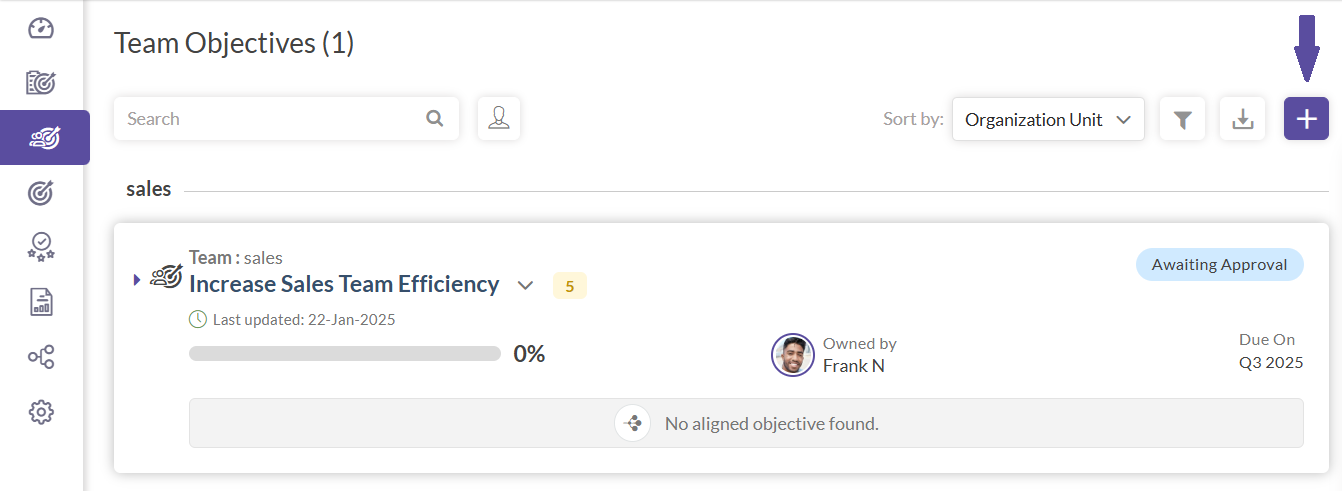
- If there are existing team OKRs created, then the page will show the list of OKRs. To create the OKR, click on the + button on the top right of the page.
- OKRs can also be created using existing templates, by clicking on the button "Create using templates".
- To Learn how to use OKR Templates, click here.
Step 3: Fill in the Required Information
- The Team Objective creation page presents various fields that require information. Ensure to provide the following details:
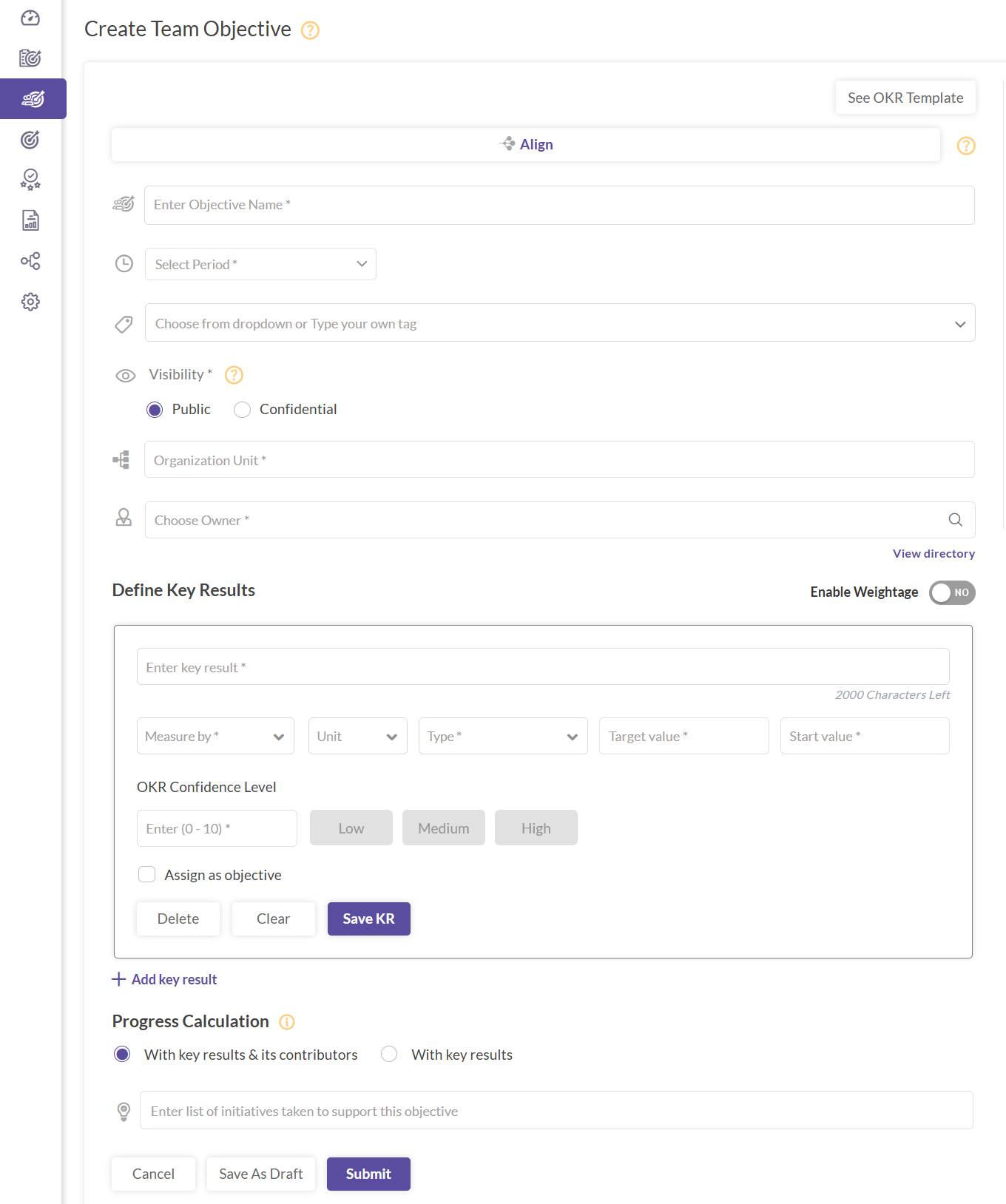
- Objective Name: Type in the name of the objective.
- Period: Select the start date and due date for monitoring the OKR's progress or accomplishing the set objective using the date picker. In case Standard date picker is selected from the configuration page, then the start and end quarter should be selected from the date picker.
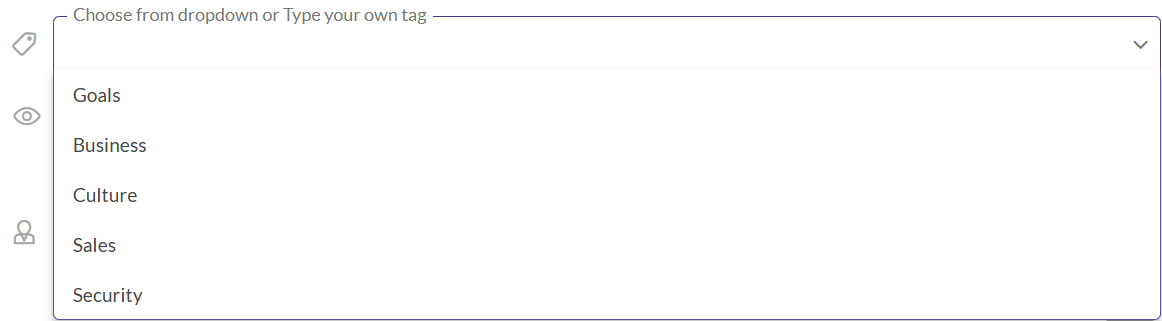
- Tag: Use this function to classify OKRs and facilitate easy reference. Click on the Tags field, choose from the options, and add custom tags by typing and pressing enter. You can add a maximum of 3 tags for an objective.
- Visibility: You can set the objectives as either confidential or Public. The public objectives are visible to all employees while confidential objectives are visible only to specific users who are given view access. These users can be granted view access by entering the name in the Choose User text box.

- Organizational Unit: Clicking here will open a popup with a list of organizational units in your company. Choose the team/ division where the team objective should be created.
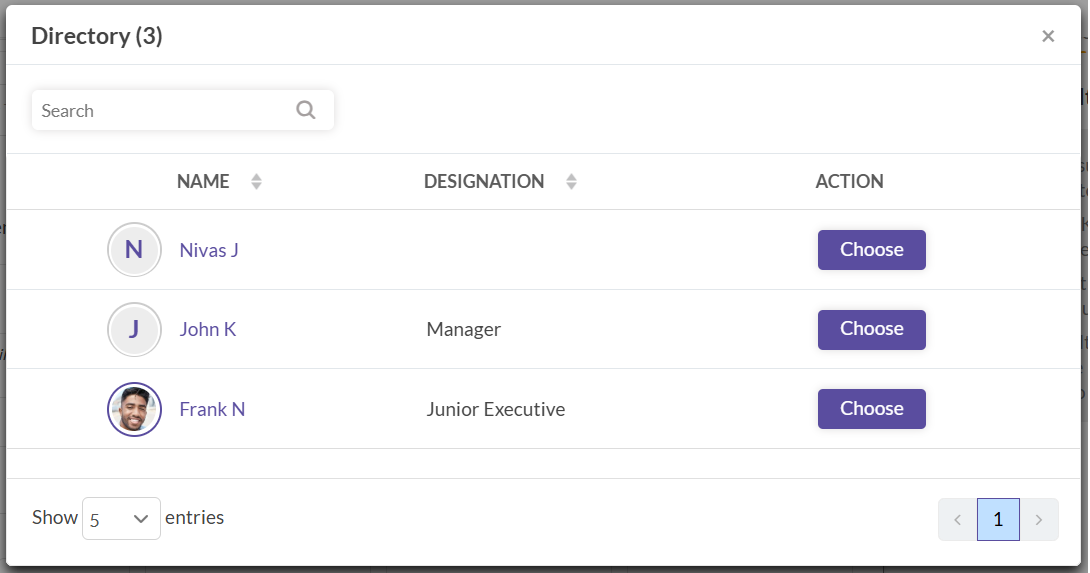
- Choose Owner: Begin typing an employee's name to see matching results from your company's directory. You can either select a name from the dropdown or click on "View Directory". The directory popup showcases employees, their designations, and an action column with a "Choose" button. Use this to assign the objective's owner.
- Define Key Result: Key results are specific, time-bound, realistic and measurable outcomes that drive the team and the individuals for achieving their set objectives. Click on the Add Key Result button to add the key results one by one.
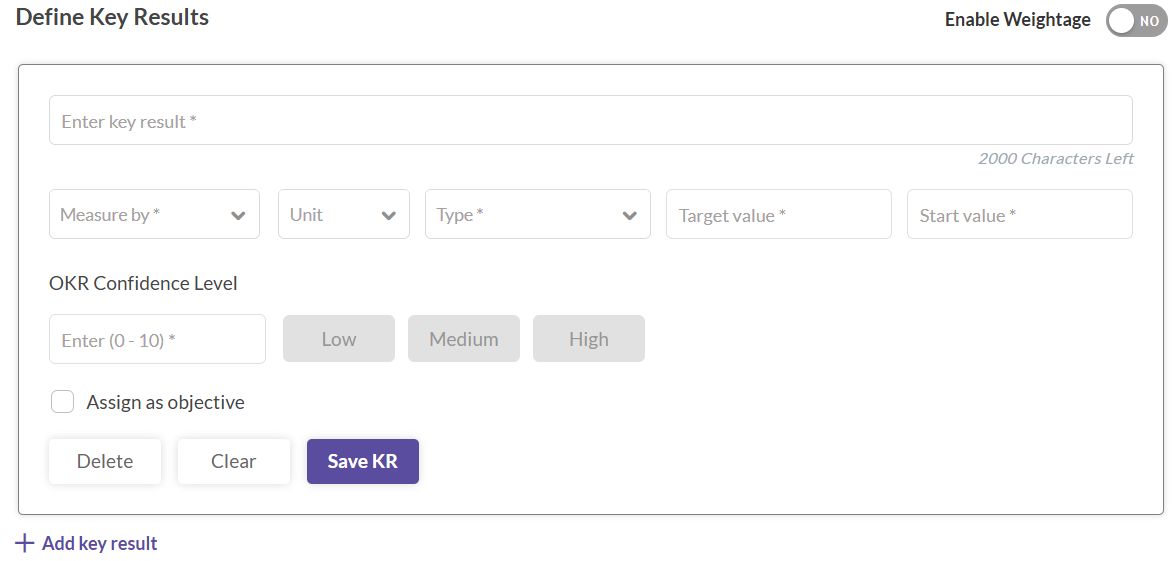
- Enter Key Result: Enter key results in texts that help achieve the main objective (max 2000 characters). E.g: Increase lead count to 100.
- Measure By:Determines how you'll measure the Key Result, choosing from "Number", "Text", or "Boolean".
- Number: This is a number-based target.
- Boolean: Completed/Not-completed.
- Text: Open-ended text field.
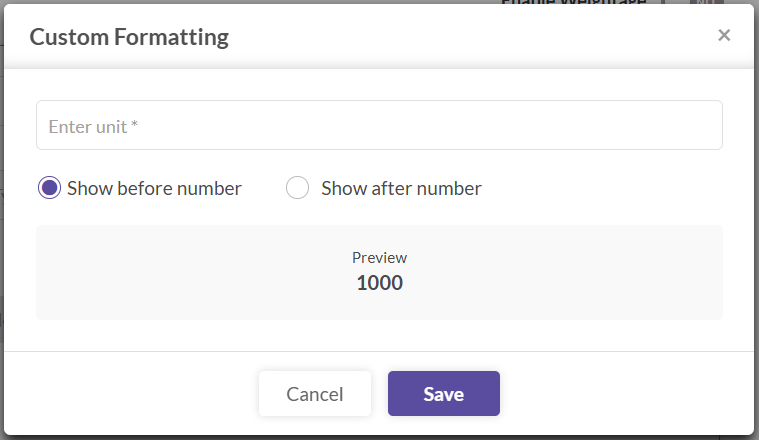
- Unit: Select a unit of measurement. Options include "#", "%", "$", "R", "₹", "£". If these don't suit, choose "Custom". This opens a popup where you can input a unique symbol or text. You can then determine its placement relative to numbers, using the "Show before number" or "Show after number" radio buttons.
- Type: This dictates the nature of the Key Results. Options are: "Equal to", "Should decrease to", "Should increase to", "Should stay above", and "Should stay below