
Attrition Report provides a report of deactivated users in the system and helps retrieve employee exit data based on the selected period.
To access the report
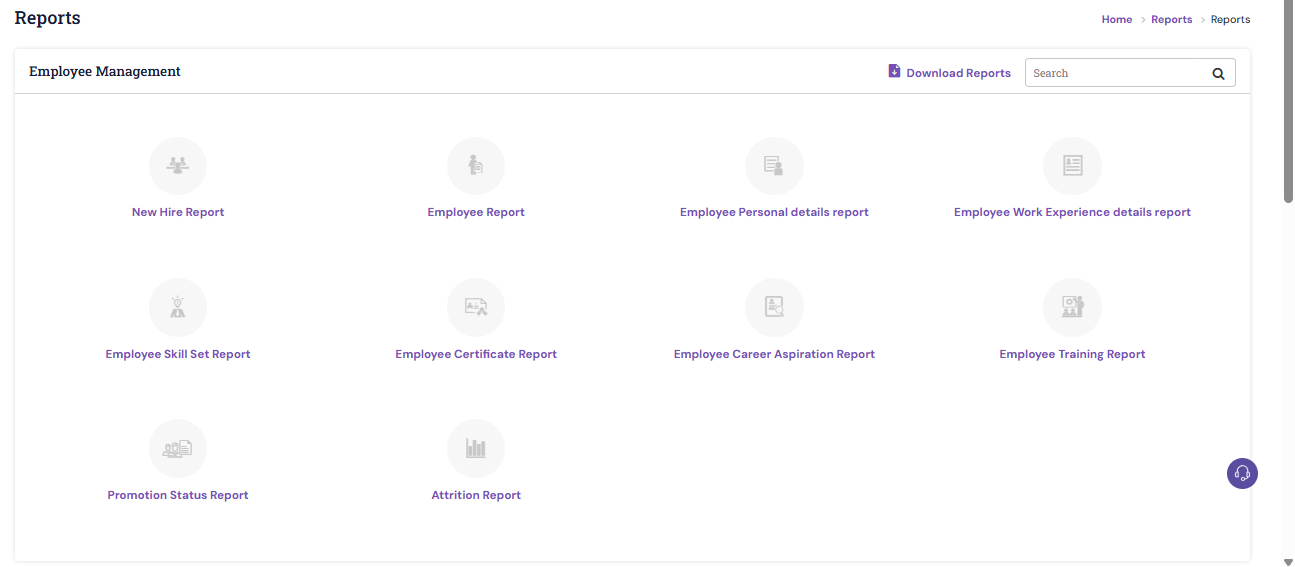
- Navigate to Reports > Reports
- Under Employee Management, click Attrition Report
- In the default view, the Attrition Report displays a stacked bar chart showing the employee count on the Y-axis against different relieving types on the X-axis for the past six months from the current date.
- The employee relieving count represents the cumulative number of employees who exited the organization in a particular month across all relieving types.
- To view the count for an individual relieving type, hover over the corresponding section of the stacked bar. The specific count is displayed as a tooltip.
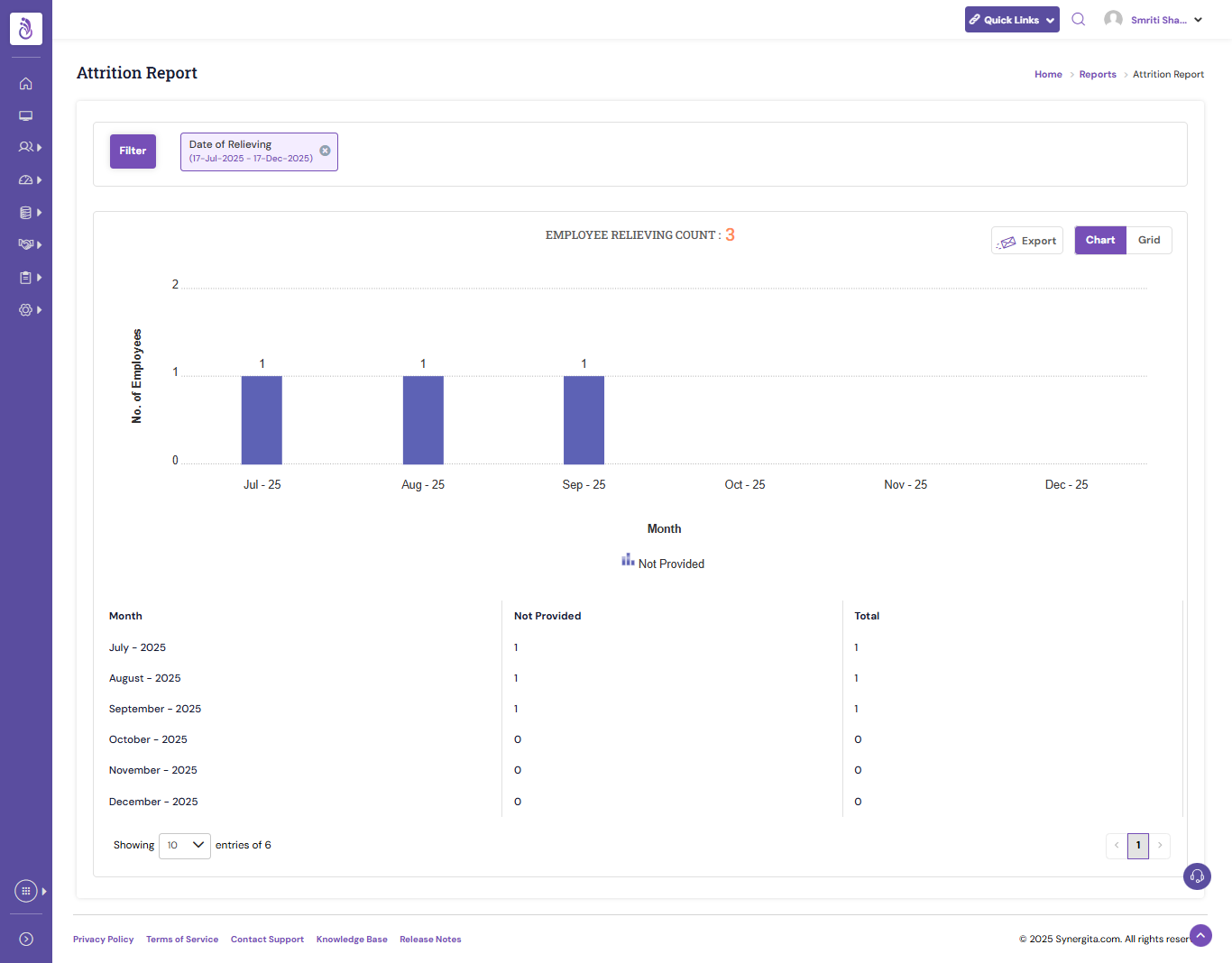
- To apply data filters, click Filter. The Filter pop-up window will appear.
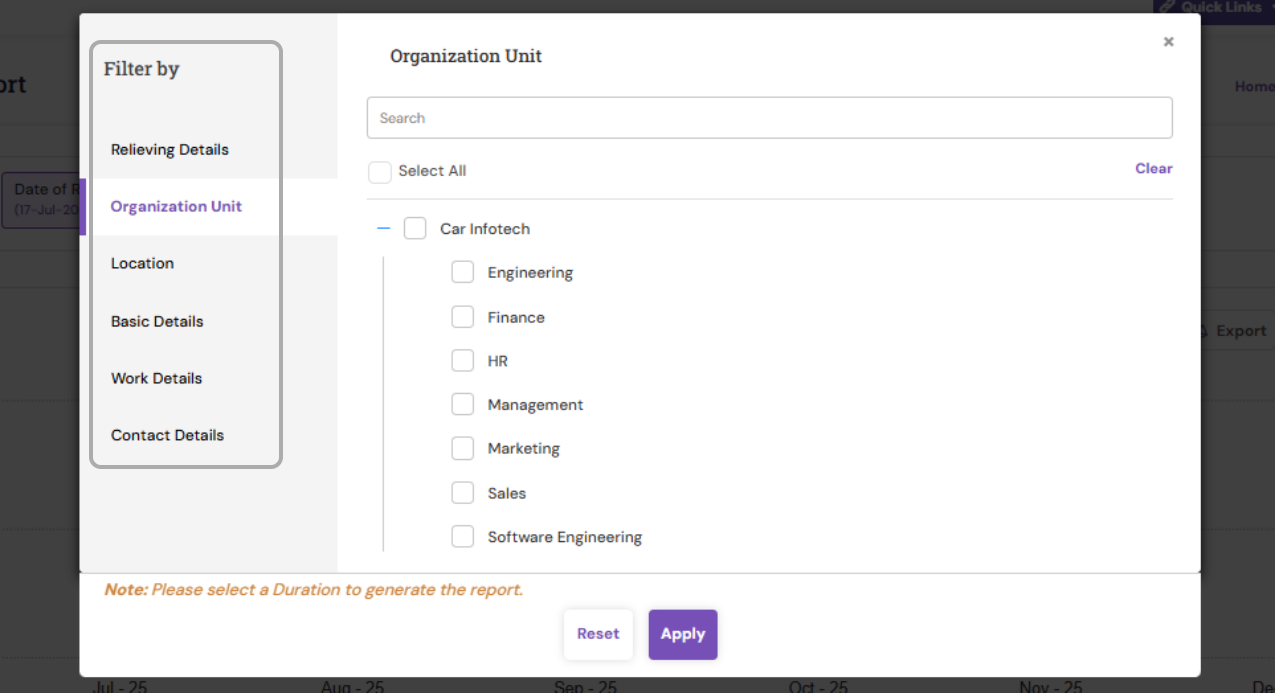
- Relieving Details: Filters the report based on relieving date range, relieving type, and relieving reason.
- Basic Details: Filters the report using employee number, employee name, employee type, employee type effective date range, and related details.
- Organization Unit: Filters the report by the selected business units.
- Location: Filters the report based on the employee’s job location.
- Contact Details: Filters the report using employee contact information such as email ID and IM ID.
- Work Details: Filters the report by employee designation, work role, track, and related attributes.
- Click Apply to filter the data you want to export.
To export the report data, click the Export with mail sending icon. The system displays a confirmation message indicating that the report will be sent to the registered email address.
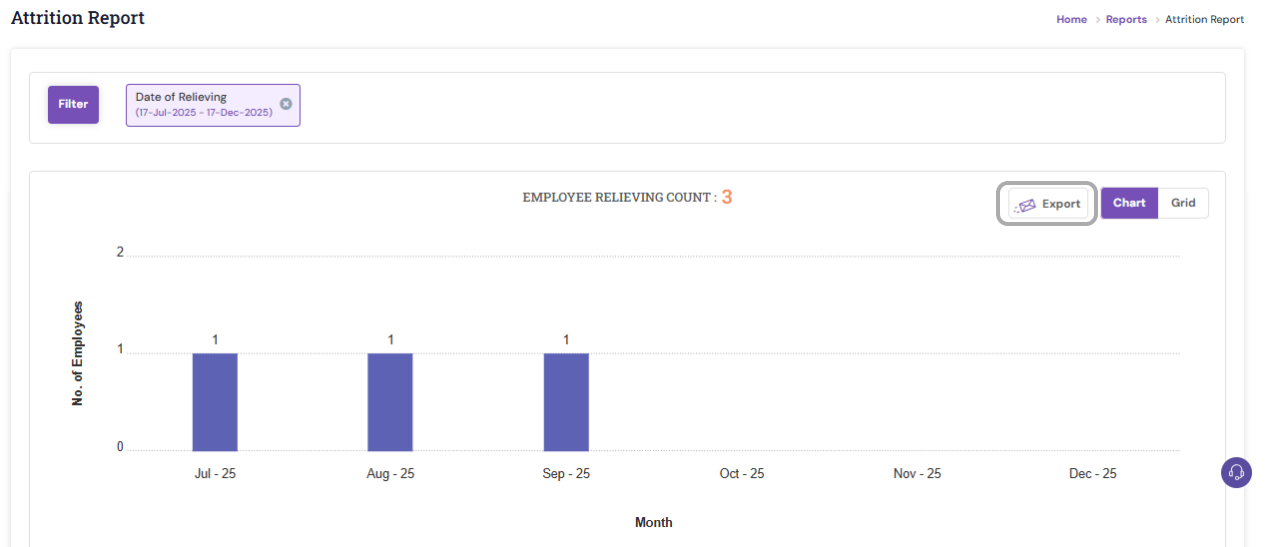
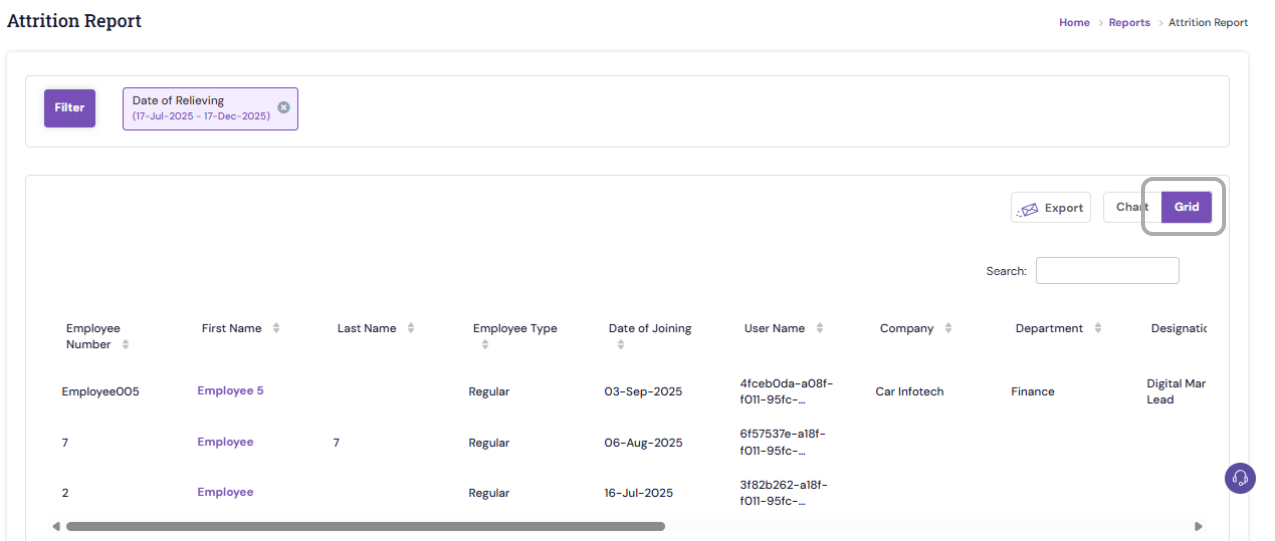
By default, the Attrition Report is displayed in Chart view. You can switch to the Grid view from the visualization tab to display the report in a tabular format with detailed information about the relieved employees.
PS: Synergita implementation for your Organization may vary from how the features are described here. The screenshots given here may also be different from what you see in your system. Please talk to the concerned person in the Organization for any specific queries.