
Checking-in to an OKR is a crucial step for organizations to track the progress of their targets. Synergita OKR provides a straightforward and user-friendly process for updating your Key Result progress and reviewing historical check-ins to ensure accuracy.
Navigation
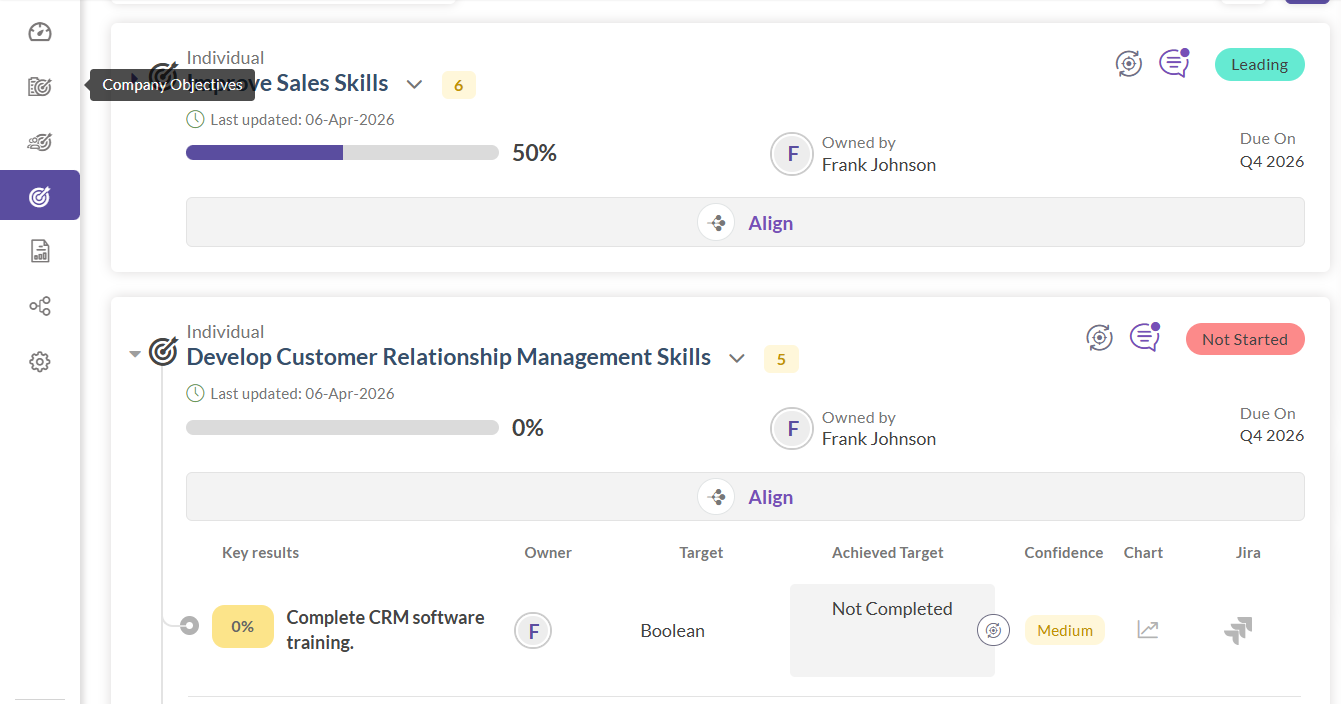
- Click on any of the objective pages on the left navigation pane (Company, Team, or Individual).
- Click on the specific objective for which you want to update the progress. This will open the OKR Details page.
- You can also expand any OKR within the Objective page to view the Key Results.
Progress Check-in
- For each Key Result, there is a progress update icon. Hovering over this icon will display Check-in.
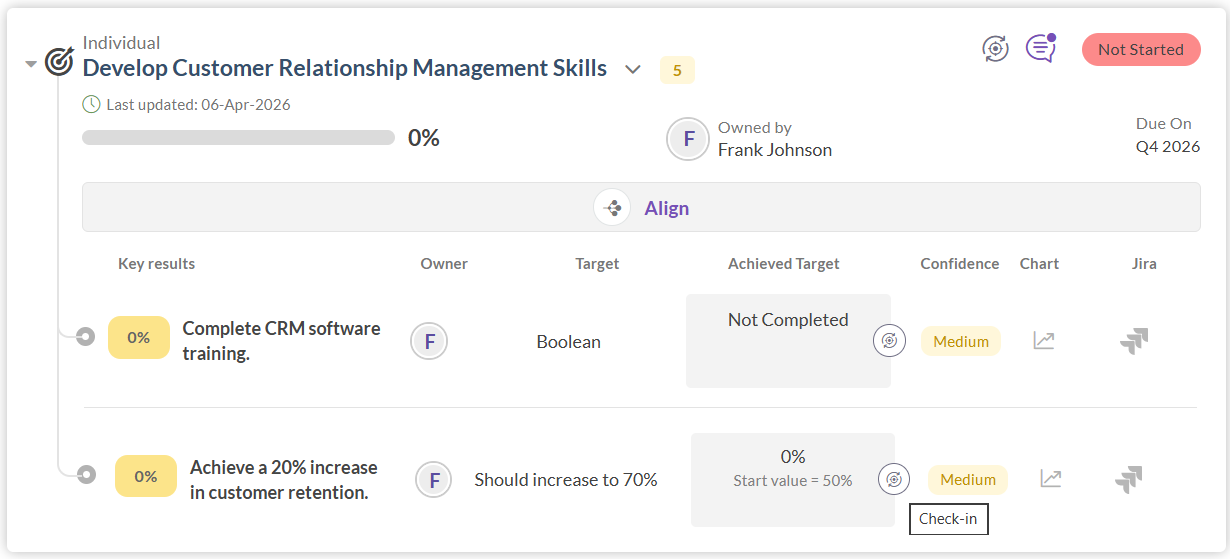
- Clicking on the icon will open the Progress Check-in pop-up.
Updating Progress
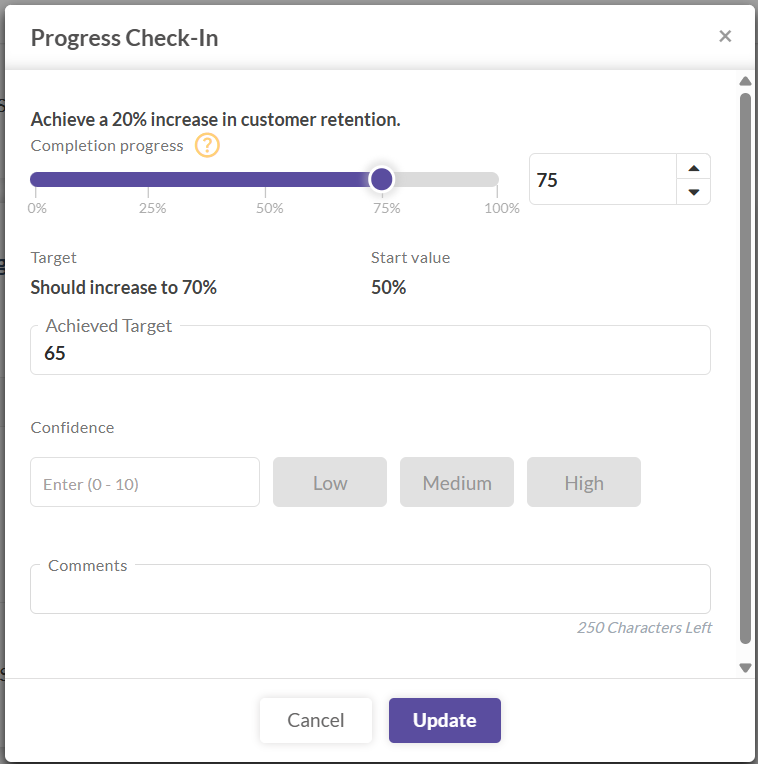
The progress of the Key Results can be updated in three ways:
- Drag or slide the progress bar to the desired value representing the achieved progress.
- Use the up and down arrow buttons next to the progress bar to adjust the completion percentage.
- Enter the exact value of the achieved target in the dedicated text box.
- Adjusting any of these three will automatically sync and change the other values in the pop-up.
Viewing Previous Check-ins
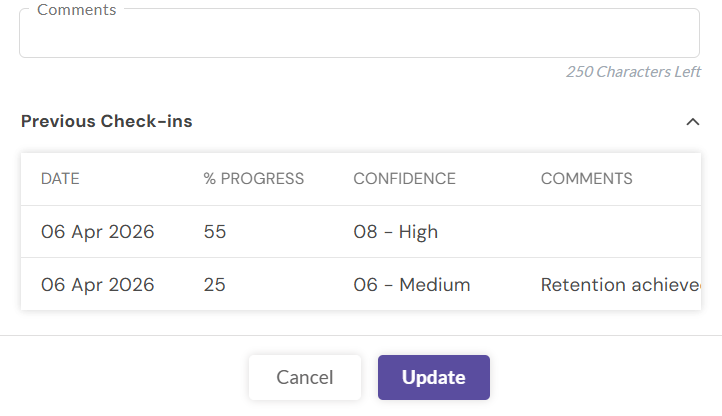
- To provide context while updating, there is an expandable section at the bottom of the pop-up named Previous Check-ins (collapsed by default).
- When expanded, it displays a table showing the Date, % Progress, Confidence, and Comments of your three most recent check-ins.
- If no prior check-ins have been made for that Key Result, this section will not be displayed.
Save Progress
- The Update button at the bottom of the pop-up is disabled by default. It will only become active once you make a change to the progress slider, progress input field, or target field.
- After entering the achieved Key Result value, updating the Confidence level, or adding Comments, click Update to save the progress.
- Once the Key Result's progress is updated, the overall progress of the Objective is recalculated and updated automatically.
Note: When the OKR is in the review stage, the progress bar will be in read-only mode.