
Synergita OKR offers a unified OKR Check-In feature. This allows you to quickly input progress, confidence levels, and comments for multiple Key Results within a single Objective simultaneously, drastically reducing the time spent navigating individual check-in screens. This feature is available across all OKR plans.
Locating the OKR Check-In Icon
You can access the OKR Check-In feature from several locations within the platform, including the Objective Pages (Company, Team, Individual), the Objective Details page, and the Hierarchy Tree.
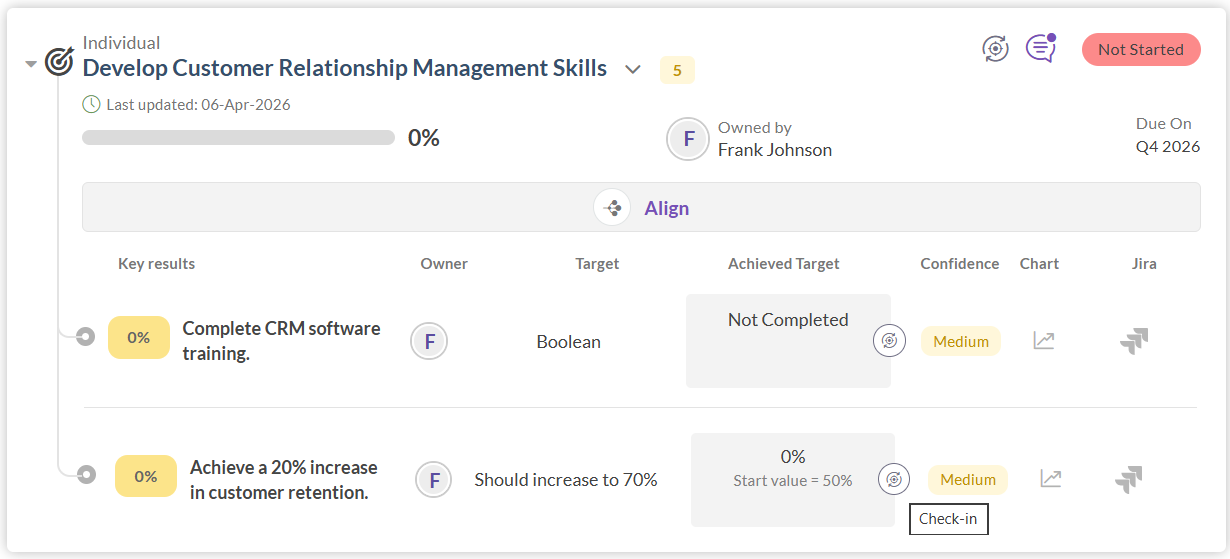
- Look for the icon featuring two arrows encircling a target symbol.
- It is positioned to the right of the Objective name (and to the left of the "Continuous Feedback" and "Hierarchy Tree" icons, if they are present).
- Hovering over this icon will display the text OKR Check-In.
- Note: If none of the Key Results in the Objective can be updated manually (e.g., they are all cascaded, externally linked to Jira, or sent for approval), this icon will not be displayed for that specific OKR.
Using the OKR Check-In Modal
- Clicking the icon opens a modal titled OKR Check-In. This pop-up will only display Key Results that are eligible for manual updates.
- Each Key Result block displays the KR Name, followed by the % Progress, Confidence, and Comments fields.
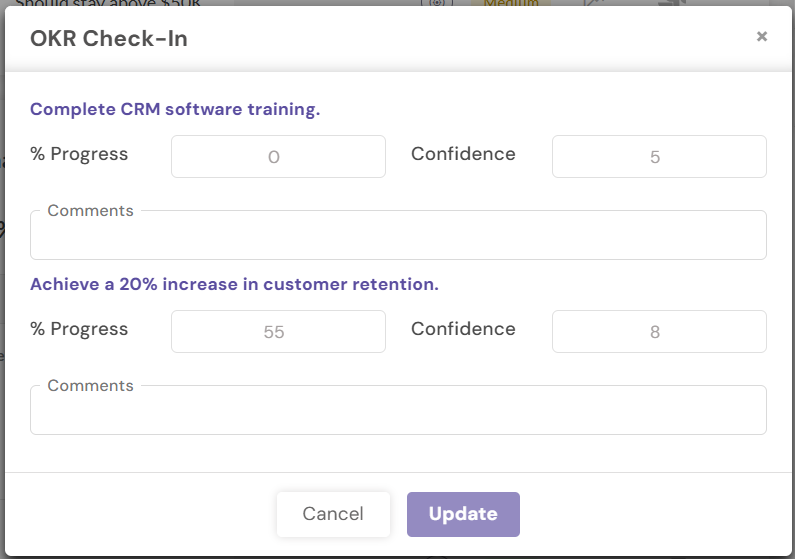
- If a Key Result name is too long to fit on one line, it will be truncated with an ellipsis (...). You can hover over it to see the full name via a tooltip.
- The "% Progress" and "Confidence" fields display your current existing values as dynamic placeholders. A vertical scrollbar is provided if you have many Key Results to update at once.
Update Rules and Validation
- None of the fields in this popup are mandatory. You only need to update the specific information you choose.
- If you update only the % Progress, the system will automatically retain your existing Confidence level. If you update only Confidence, your existing % Progress is safely retained.
- The system will automatically calculate and adjust your "Achieved Target" based on the modified % Progress.
- Comment Validation: You must update either the Progress or Confidence to add a comment for a Key Result.
Saving Your Updates
- The Update button at the bottom of the modal is enabled as soon as you enter a new value into any of the "% Progress," "Confidence," or "Comments" fields.
- Click Update to commit your changes. The system will only save the fields that were actively modified, ensuring no data is accidentally overwritten with blank values.
- Click the Cancel button or the x at the top right to close the modal without saving any changes.