
The 360° Feedback Review allows employees to receive well-rounded insights from colleagues, managers, peers, and external partners who interact with them. As part of this process, users may be required to nominate their own reviewers. This ensures the selected raters genuinely understand the employee’s performance and can provide meaningful, constructive feedback.
This article explains the purpose of reviewer nomination and provides clear steps to help users complete the nomination smoothly.
What Is Reviewer Nomination?
Reviewer nomination is a step in the 360° review process where employees select individuals who can assess their performance. These raters may include Collegues, peers, or external stakeholders, depending on what your HR Team has configured.
If reviewer nomination is enabled in the process flow, employees will be prompted to choose relevant raters who can provide accurate and balanced feedback. Once submitted, the nominations move forward for approval or to the next stage as defined in your review process.
How to Nominate Reviewers
Follow the steps below to complete your reviewer nominations:
- Once the 360° review cycle is initiated, and if reviewer nomination is part of your process:
- Navigate to Performance > My Action Items or Dashboard > My Action Items
- Click Nominate Rater
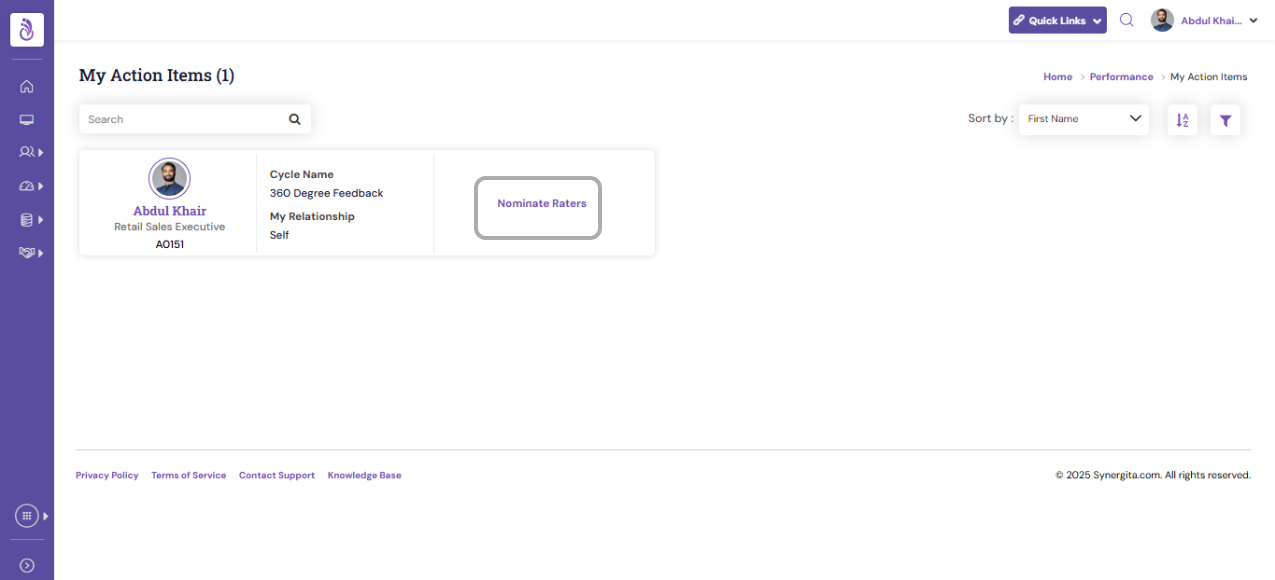
This will open the nomination screen where you can begin selecting reviewers.
- You can nominate both internal and external reviewers (as per the configuration):
- Choose the Reviewers who best understand your work and contributions
- Search by Name or Employee ID. Click "Add" to the list. You can also select the user by applying the available filter.
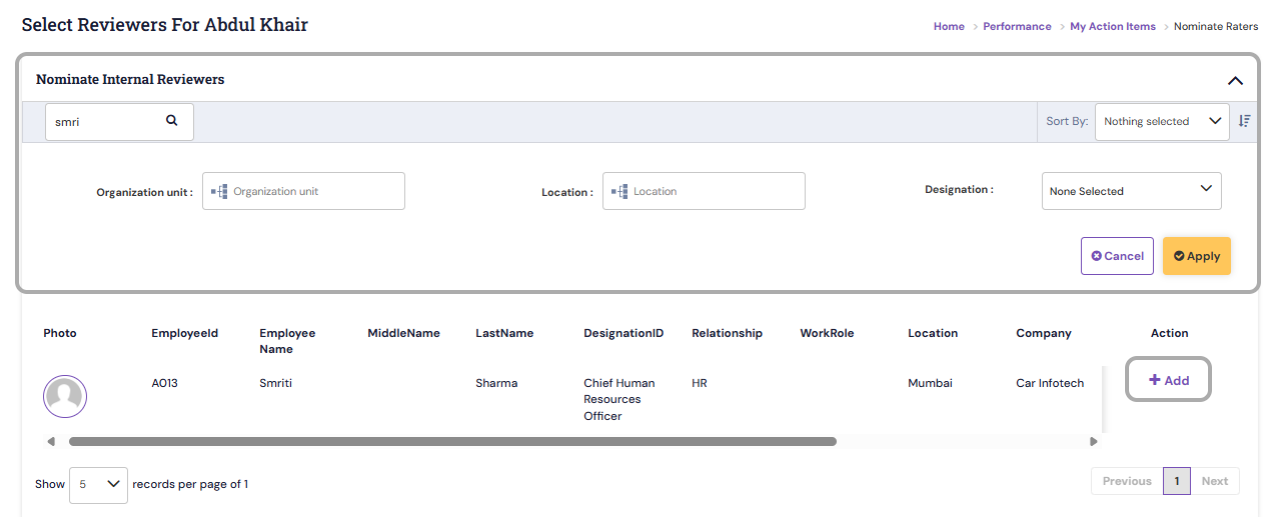
After Adding the desired reviewer:
- You will be prompted to assign a Relationship Type for each reviewer (e.g., Peer, External stakeholder, etc.)
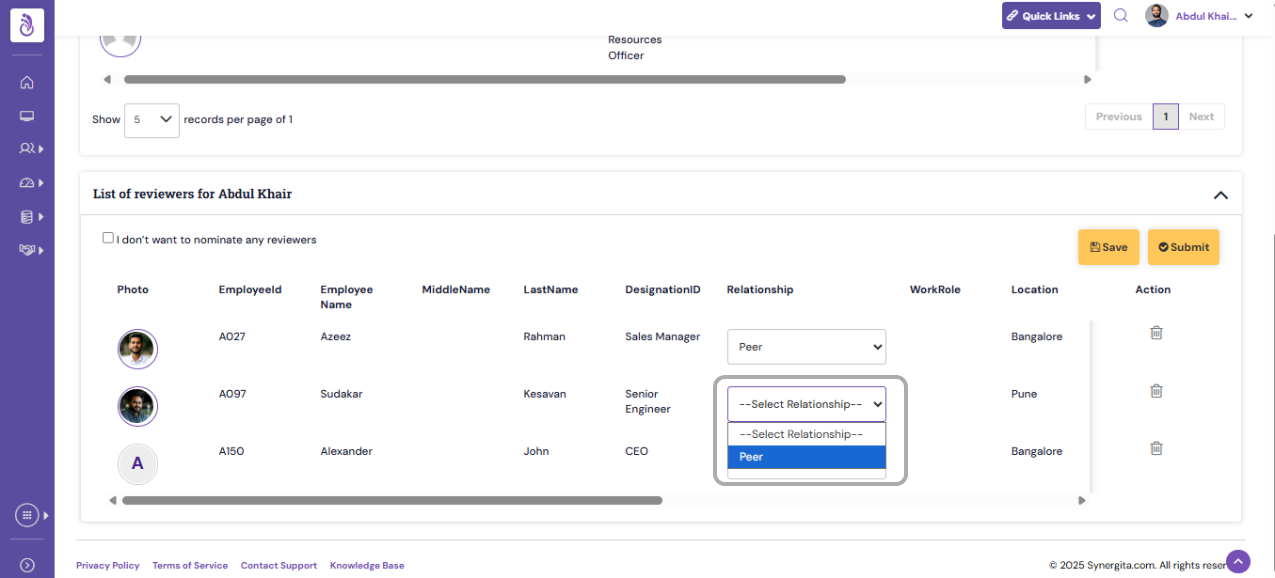
- Once all reviewers are added, review the list and Click "Save".
- Confirm your nominations by clicking on Submit.
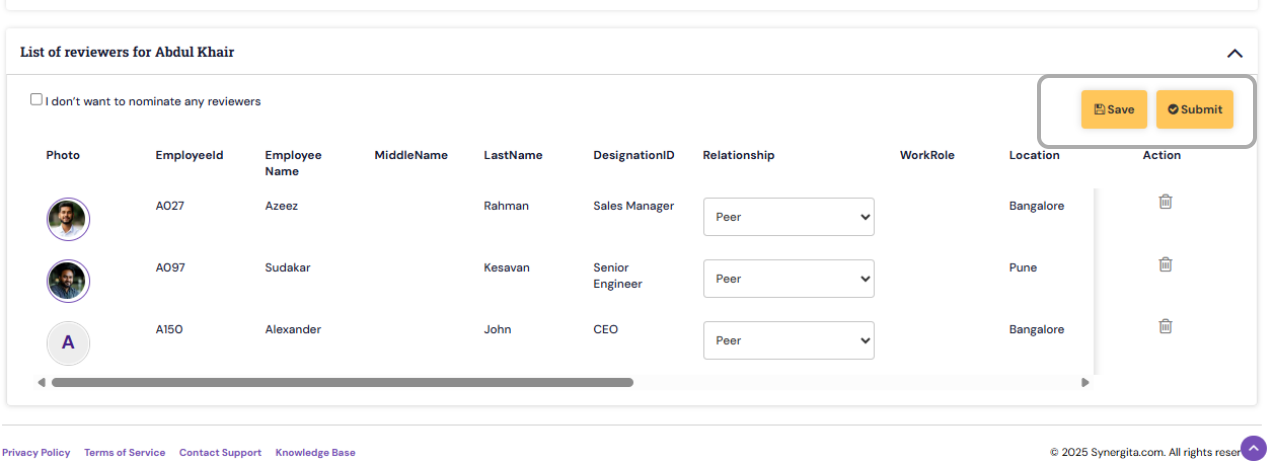
- Upon confirmation, your nominated raters will move to the next step as defined in your organization’s 360° review workflow (e.g., manager approval, automatic trigger of feedback forms).
PS: Synergita implementation for your Organization may vary from how the features are described here. The screenshots given here may also be different from what you see in your system. Please talk to the concerned person in the Organization for any specific queries.