
When the 360° review cycle is initiated and reviewer nomination is part of the process, managers are required to review and approve the raters nominated by the employee. This ensures that the selected reviewers are appropriate, relevant, and capable of providing meaningful feedback.
To approve reviewers, follow the steps below:
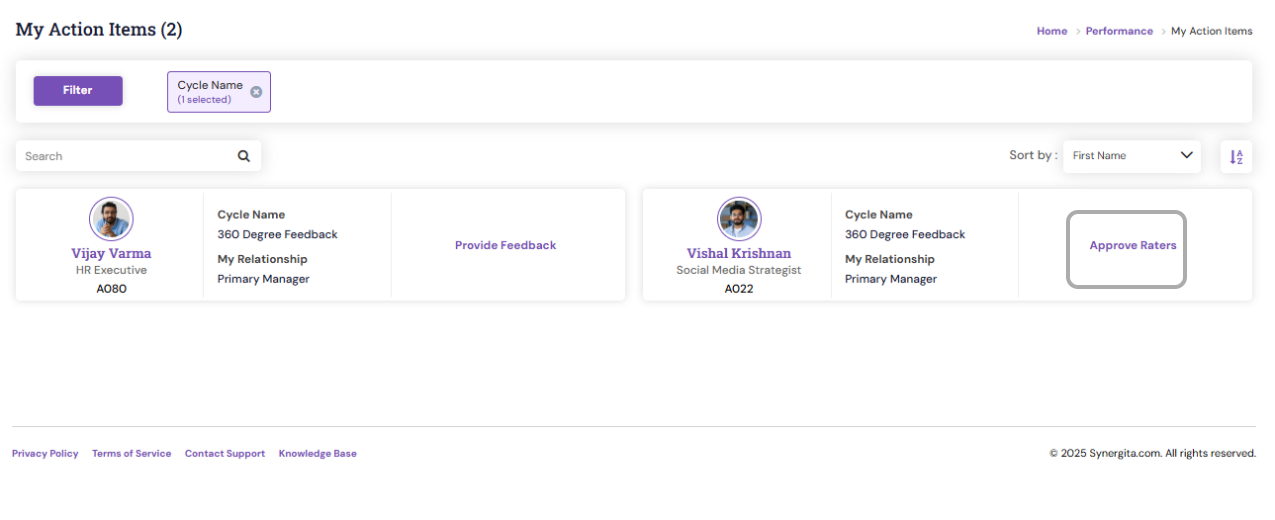
- Navigate to Performance > My Action Items or Dashboard > My Action Items
- Click Approve Rater to view the list of reviewers nominated by the employee.
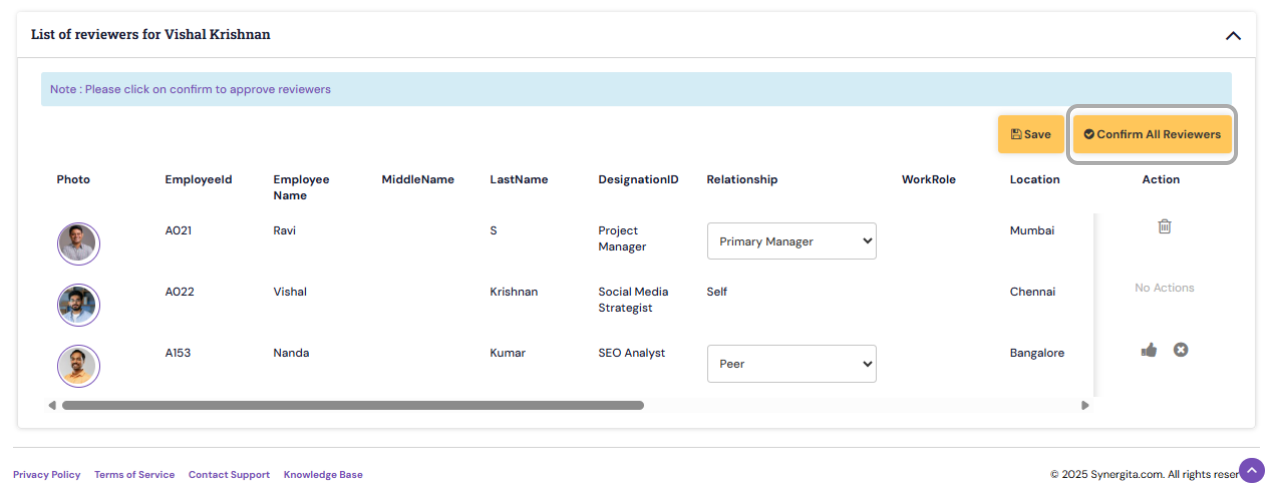
- If the manager is satisfied with the nominated raters, they can Confirm All Reviewers.
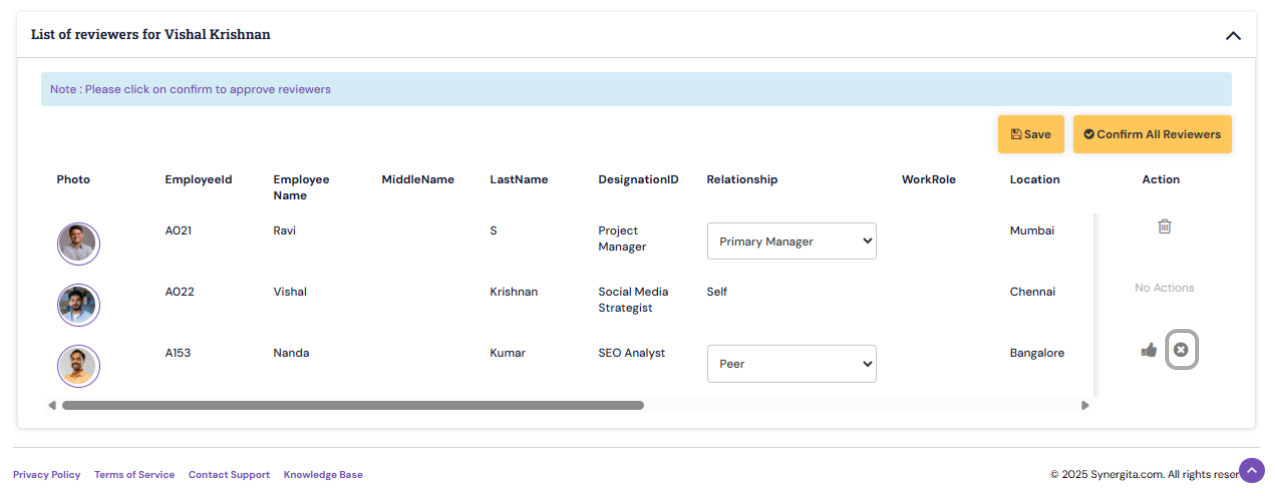
- If the manager wants to reject a rater, click the Reject icon to remove the reviewer from the list. After removing, the manager can add a new rater from their end.
To replace or add new reviewers, the manager can:
- Scroll up and Search for reviewers by Name or Employee ID, or use the available filters to select the right individuals under "Nominate Internal Reviewers".
- Click Add to include the selected reviewer in the list.
- Assign the appropriate Relationship Type (e.g., Peer, External Stakeholder, etc.).
- After all desired reviewers are added/changed, review the list, click Save, and Confirm All Reviewers.
Note :
|
PS: Synergita implementation for your Organization may vary from how the features are described here. The screenshots given here may also be different from what you see in your system. Please talk to the concerned person in the Organization for any specific queries.