
The master list of competencies & other attributes in the feedback form can be managed here. This is Organization wide library, and these attributes can be added to the master feedback forms.
The steps to create a new attribute are as follows.
1. Navigate to Admin > HR Administration
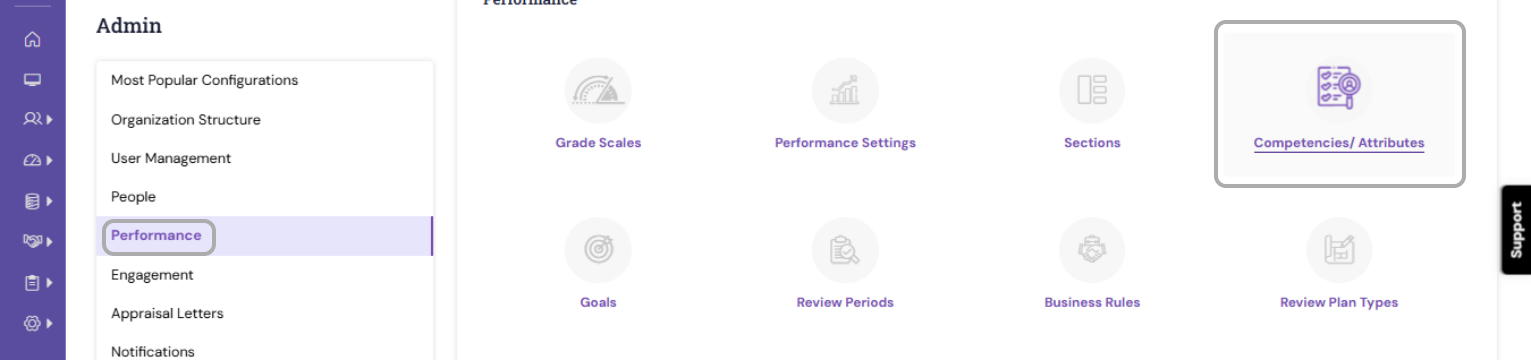
3. Click the Add button. This will create a new row under each column.
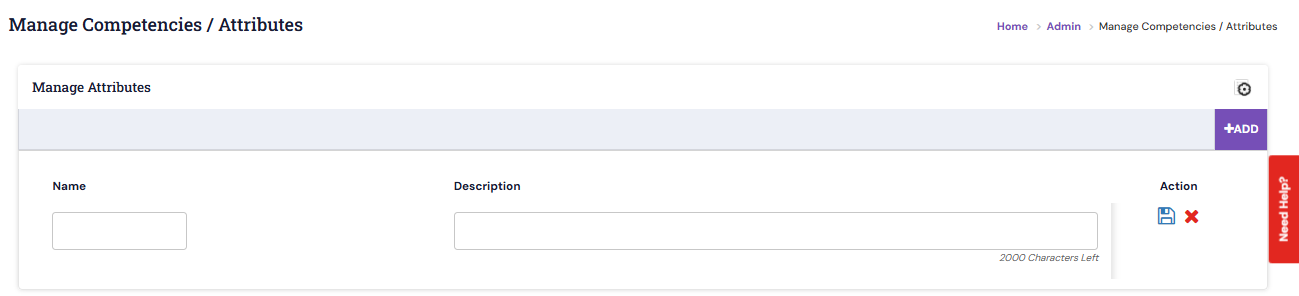
4. Give a name or title for the Attribute.
5. Describe the purpose of the competency/attribute to get employee identified against each competency specific to a role or function.
| Note: Here, the sections, grade scale and feedback provider group that have been already configured will display as a drop-down menu. For more details on how to configure these settings, kindly refer the relevant topics. |
6. Map the attributes under already defined sections. The sections can be defined in the "Manage Sections" page. These attributes will always appear under the defined section in the feedback forms.
7. Select the Grade Scale and Feedback Provider Group or Review Group for the defined attribute.
8. In Help Text, provide the rating guidelines that will be visible in the feedback form.
9. On saving, the attribute details will be added to the Organization Library under the sections they have been created.
PS: Synergita implementation for your Organization may vary from how the features are described here. The screenshots given here may also be different from what you see in your system. Please talk to the concerned person in the Organization for any specific queries.