
The SMART goal framework helps create clear, focused, and realistic goals for employees. These SMART goals can then be included by choosing and adding the goals during goal setting process and evaluated during the review cycle.
How the process works:
HR Admin manages and maintains the master goal library and publishes relevant goals across the organization.
Managers can assign goals to their direct reportees directly from the library. They may also edit or customize these goals during assignment to tailor them to the specific needs of each team member.
Employees can add goals for themselves by selecting from the published goal library.
To create a SMART Goal in the Library
1. Navigate to Admin > Performance > Goals
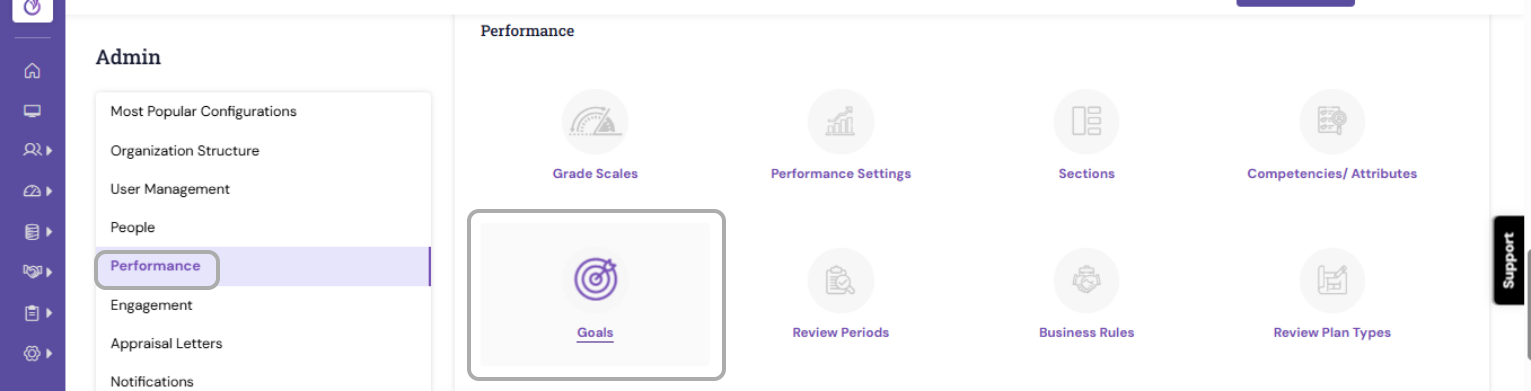
2. Click the Add button. This will create a new row under each column.
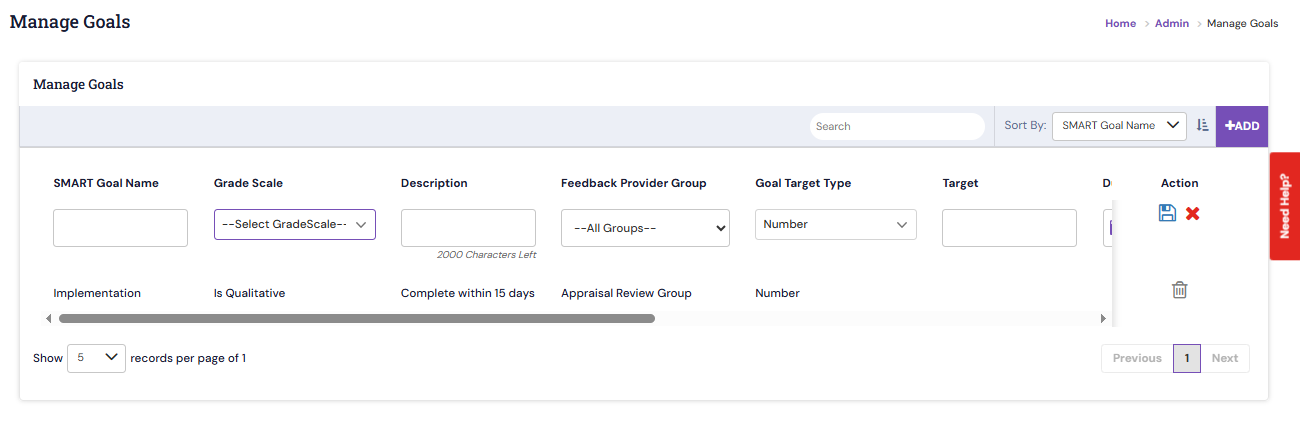
3. Fill the standard information that includes
- Goal Name - Give a unique name for a SMART Goal or a KPI goal. The goal name should be assigned based on individual employees job function
- Grade Scale - Select 3, 4, or 5 point scale for assessing the individual employee goal
- Goal Description - Provide a short description of the goal that ensures the understanding of the goal objective and its outcome
- Measure - Explain how the achieved target is measured
- Feedback Provider Group - Select the required review group for reviewing the individual employee goal progress. The review groups can be managed in the Growth Settings page.
- Units - The Units can be in number or percent of the target
- Goal Target Type - The goal types can be in number, text or date (e.g. you can set sales target by number, goal status updates by text, and timeline by date)
- Target - Managers can define the specific desired outcome upfront and employees can define or update the achievements while goal review is in progress
- Target Condition - The condition can be equal, greater than or equal, or lesser than or equal to the target defined
- Achieved Target - This is the target achieved or accomplished by the employee while the goal is in progress
- Start Date - Specify the calendar date at which the goal becomes effective
- Due Date - Specify the calendar date by which the goal should be achieved
- Completed Date - Specify the calendar date at which the goal is completed
- Achieved on Date - Specify the calendar date at which the mentioned target is achieved
- Goal Status - Initial status will always be Not Started and changes based on the process flow
4. If you have specified the target Measure for the employee to achieve, then you have to specify Goal Target Type, Target Value and Target Condition.
5. If the goal is qualitative, then there is no need to provide values for Goal Target Type, Target Value and Target Condition.
6. If the defined SMART goal is relevant to other related goals, select the section under which you want to align this goal.
7. On saving, the SMART goal details will be added to the Goals –Organization Library.
8. You can select the required employee goals from this Library during goal setting associated with an employee role.
PS: Synergita implementation for your Organization may vary from how the features are described here. The screenshots given here may also be different from what you see in your system. Please talk to the concerned person in the Organization for any specific queries.